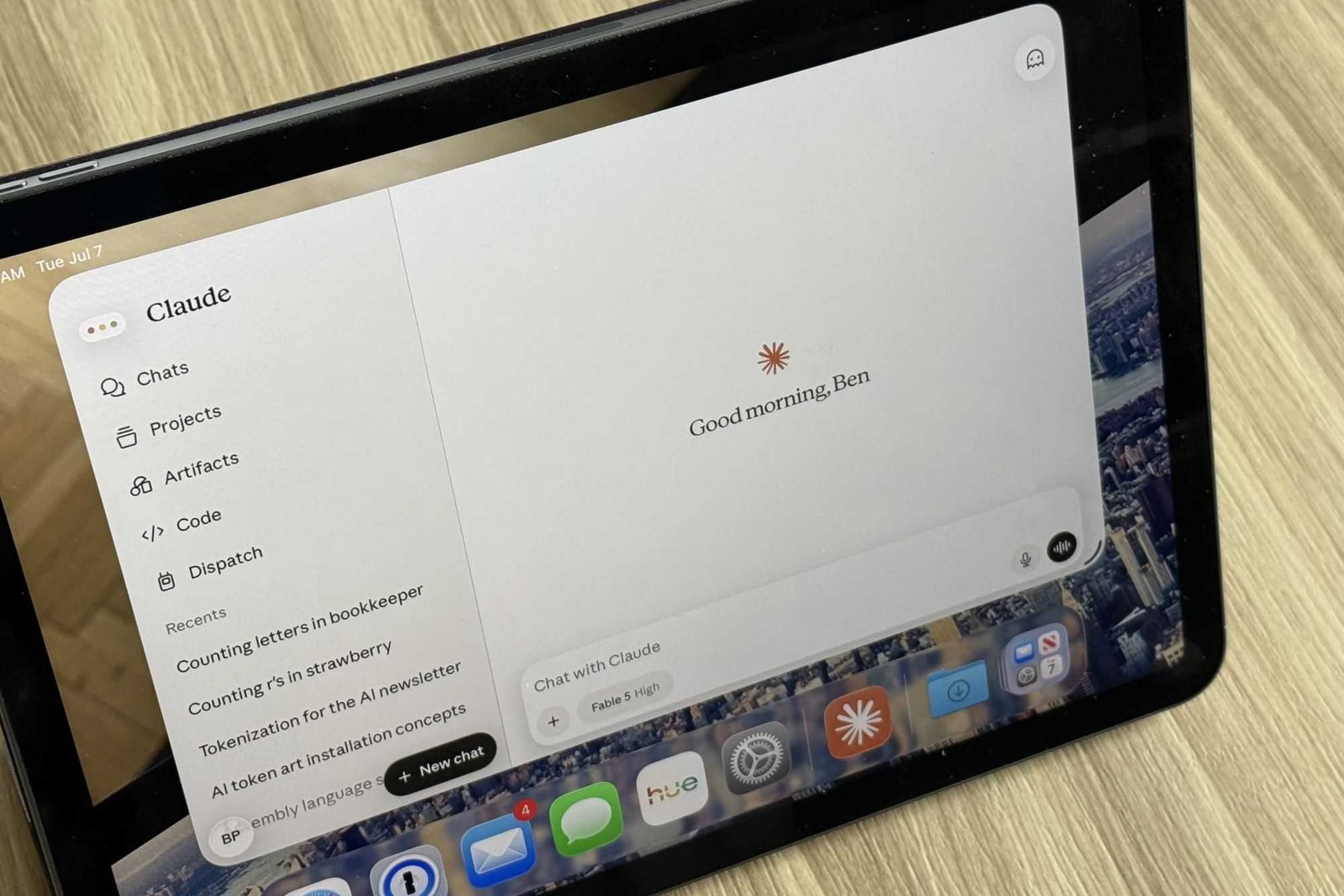
As with ChatGPT, the available settings in the Claude app are continually in flux, and it’s easy to lose track of what Claude’s allowed to do on your system and what private or sensitive details you’re sharing with it.
Now is as good a time as any for a five-minute audit of some key Claude settings, running the gamut from whether it’s using your input for training purposes to what it can—and can’t—remember about you. I’ll also cover which local directories are fair game for Claude Cowork.
Block Claude from training on your prompts and conversations
By default, most of the big AI providers will train their models on your chat inputs. Claude is no exception. If you don’t want Anthropic gathering training data from your prompts, there’s an easy way to opt out.
Go to Settings → Privacy, scroll down to the “Help improve our AI models” setting, and toggle it off. While you’re at it, you might also want to disable the “Location metadata” setting to keep Claude from using your IP address to suss out what city and/or region you’re in.
Keep Claude from remembering “sensitive” details about you
Anthropic’s been rolling out big changes in terms of Claude’s memory abilities, and along with the revamp comes new memory settings, including this one. Go to Settings → Memory and you’ll see a new “Include sensitive topics in memory” option.
If you enable this setting, Claude will start remembering anything you share about your race, religion, health status, politics, and other “sensitive” details. The toggle should be off by default, but check it just in case.
Review Claude’s memories of you
While we’re in Claude’s memories settings, it’s a good idea to review what other random details Claude has remembered about you—handy for revising or deleting stale or incorrect memories.
If you’re not already there, navigate to Settings → Memory, then scroll down until you see the details of what Claude knows about you, with the memories now divided into categories like “You,” “Topics,” and “People.”
Click the Edit button next to each section to check Claude’s recollections, then use the chat box below to request changes. You can also clear out a memory category entirely by clicking the Delete icon.
Unshare Claude chats you want private
Remember the fuss over Claude chats that somehow found their way into Google search results? No, it wasn’t a security breach. Instead, these were Claude chats that had been shared using publicly accessible URLs, meaning anyone with the link could access them.
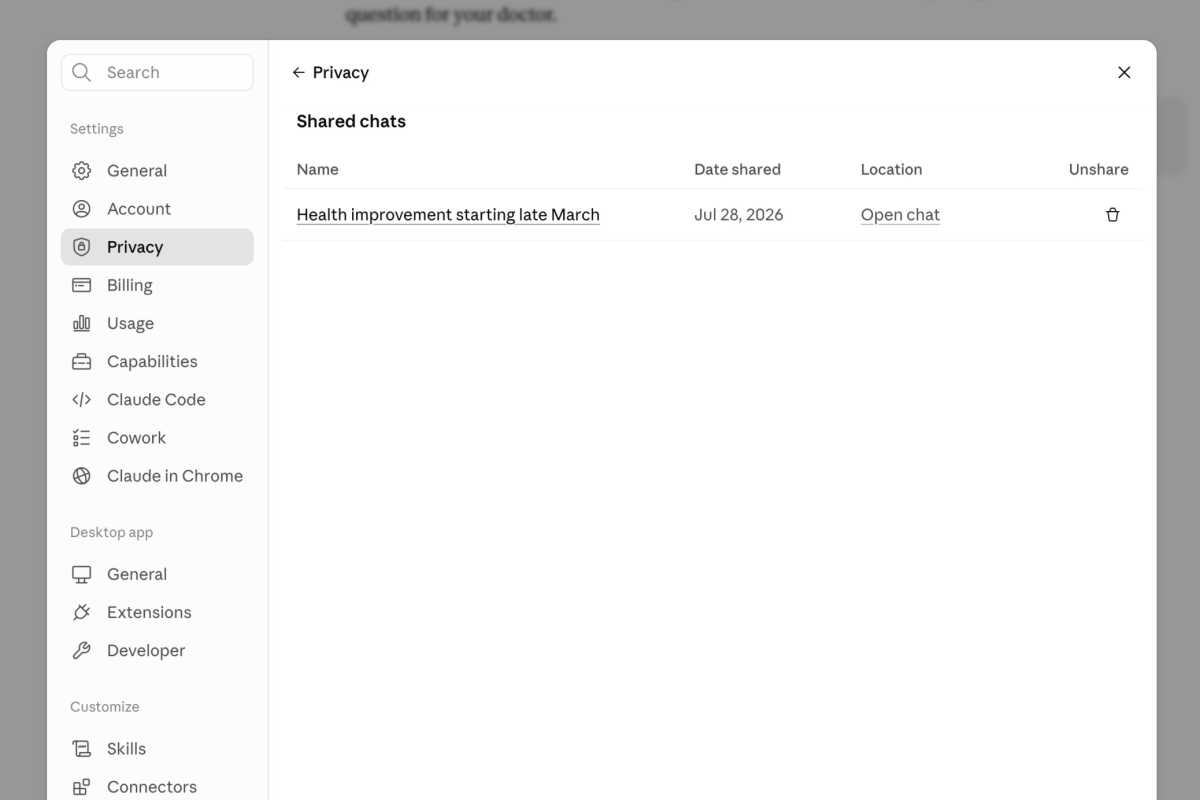
You can make previously shared Claude chats private again in the Claude app’s Privacy settings.
Ben Patterson/Foundry
If a shared Claude link winds up on a social post or another public platform, there’s always the chance a search crawler could pick it up… and the next thing you know, that Claude chat you thought was private is on Google. (Claude chat links are supposedly flagged in a way where Google crawlers will leave them alone, but clearly that doesn’t always happen.)
To keep a sensitive Claude chat private, you should avoid sharing it publicly. To see which Claude chats you’ve already shared, go to Settings → Privacy, then click the Manage button next to “Shared chats.” From there, you can unshare any Claude chats you don’t want public.
Check which local folders are open to Claude Cowork
One of the most powerful features in the Claude desktop app is that Claude Cowork allows Claude to jump out of its chatbox to access your local files and even edit or delete them depending on its instructions.
The good news is that Claude Cowork will only do its thing within local directories you’ve permitted. The bad news is that it’s easy to lose track of which folders Claude Cowork thinks are “trusted” and which aren’t.
That’s why it’s smart to double-check that you haven’t granted Claude access to any sensitive or irreplicable directories—and especially not your home directory, where it could potentially wipe all your personal files with one bad prompt.
To see which local folders Claude Cowork considers to be trusted, go to Settings → Cowork, scroll down to “Trusted Cowork folders,” then click the Manage button. If you see your top-level home directory listed there, remove it immediately.
In fact, you should ensure that any trusted Claude Cowork directories are at least a couple of levels down from your main home folder, lest a missing slash result in your personal data getting wiped by accident.
This articles is written by : Fady Askharoun Samy Askharoun
All Rights Reserved to Amznusa www.amznusa.com
Why Amznusa?
AMZNUSA is a dynamic website that focuses on three primary categories: Technology, e-commerce and cryptocurrency news. It provides users with the latest updates and insights into online retail trends and the rapidly evolving world of digital currencies, helping visitors stay informed about both markets.
