
What is a RAID array?
RAID stands for “Redundant Array of Independent Disks” or “Redundant Array of Inexpensive Disks,” depending on who you talk to. Note that the word array is included in the acronym, so saying “RAID array,” as a lot of people do, is redundant.
RAID was created to combine multiple drives into a single, higher-capacity and/or faster volumes. It also facilitates data redundancy, also known as fault tolerance or failover protection, so that the array and its data remain usable even when a drive fails. You’ll often hear about 1-disk or 2-disk redundancy, which refers to the number of drives that can fail while the array remains viable.
Redundancy is great, but it’s important to understand that it offers no protection against malware, theft, or natural disaster — and it’s certainly no substitute for proper backup practices. But as stated, it does make sure you can still access your data in case of drive failure.
RAID can be implemented in two basic ways: hardware via your BIOS or a controller chip/card, or software that sits on top of your operating system. You can boot with the first, the second is only for storage. There are also external RAID boxes that feature a controller.
What are RAID levels?
There are many types, or “levels” of RAID, each assigned its own unique number. Each level employs different methods to gang drives together, distribute data, and implement redundancy. While commonly referred to by number, you may see them described as “simple,” “parity,” “striped,” “mirrored,” etc.
The three most common levels in the consumer and small-office markets are RAID 0, RAID 1, and RAID 5. However, you’ll encounter numerous other options too, including levels 6, 10, 5+1, JBOD (“Just a Bunch Of Disks”). The number of drives required varies by level.
There are also abstracted/pool RAID implementations such as Microsoft’s older Virtual Disk RAID and Storage Spaces, as well as hardware implementations such as Netgear X-RAID and Synology SHR. I’ll cover these in a bit.
First the standard RAID levels:
RAID 0 (Striping — two or more drives)
Picture the 0 in “RAID 0” as an oval racetrack and you’ve divined its primary purpose: Faster performance. RAID 0 distributes data across multiple drives (for example, block A goes to and from drive 1, block B goes to and from drive 2).
The multiple pipelines enable increased write and read speeds. This approach is often referred to as striping, and other modes (as you’ll see later) employ the technique as well.
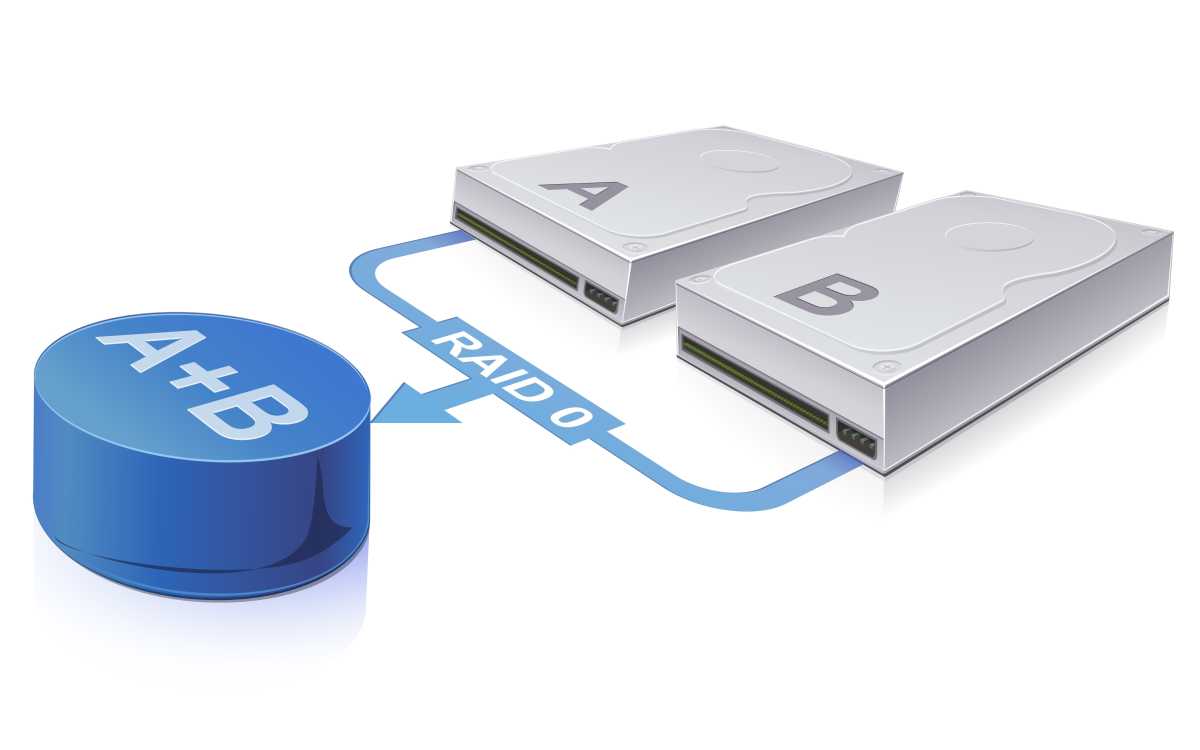
Regrettably (and dangerously, if you aren’t aware of the risks), RAID 0 offers no protection against drive failure. It does not duplicate data or create any parity information. And sadly, it actually doubles the possible failure points.
Hence, when a drive fails, you end up with a puzzle that’s missing a piece. In such a situation, your data is quite possibly kaput, though you can find service providers that might be able to recover it — for a lot of money.
Note that any level (10, 50, 60, etc.) with a zero at the end involves striping data across multiple drives or volumes, though most often mixed with some sort of technique for redundancy
RAID 1 (Mirroring — two or more drives)
RAID 1 writes and reads the same data simultaneously to more than one drive (almost always in pairs); it’s also referred to as mirroring. The drives are equal partners — should either fail, you can continue working with the good one until you can replace the bad one.
RAID 1 is the simplest, easiest method to create failover disk storage. However, it costs you a whopping 50 percent of your total available drive capacity; for example, two 1TB drives in a mirrored array nets you only 1TB of usable space, not the 2TB that RAID 0 would provide.
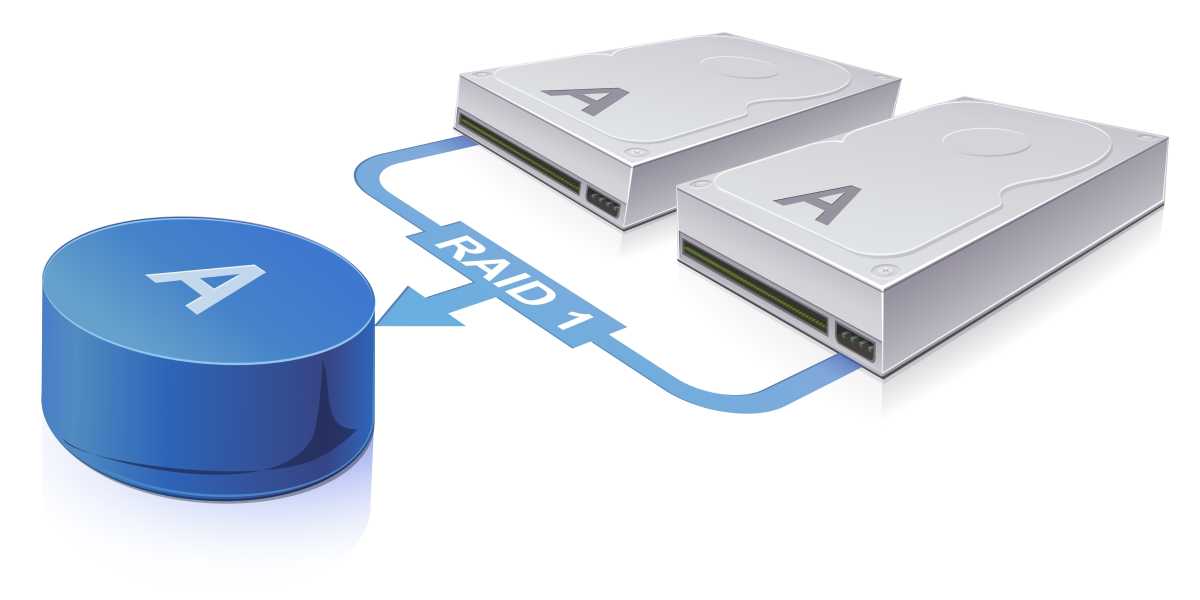
You may employ as many mirrored drives as your RAID controller allows. And in the unlikely event that said consumer-grade controller supports duplex reading, RAID 1 can provide an increase in read speeds by fetching different blocks simultaneously from each drive.
RAID 5 (Distributed parity — three or more drives)
This RAID mode offers both speed and data redundancy. RAID 5 stripes blocks of data to multiple disks. Parity (XOR’d) information is distributed across all the drives, so data blocks on a failed drive can be restored by reversing the XOR operation on the remaining data blocks.
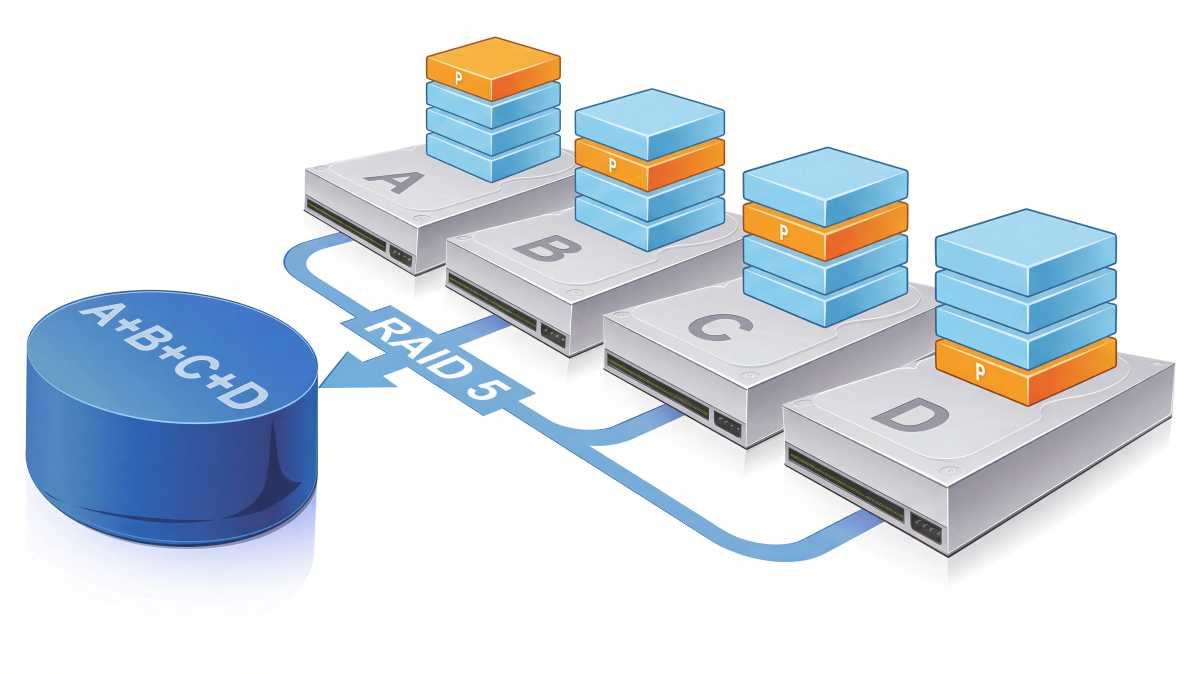
RAID 5 uses approximately one-third of the available disk capacity for parity information, and requires a minimum of three disks to implement. Since data is read from multiple disks, performance can improve under RAID 5, though some users report that RAID 5 slows performance greatly when it’s processing multiple reads in a server situation.
RAID 6 (Double-parity — four or more drives)
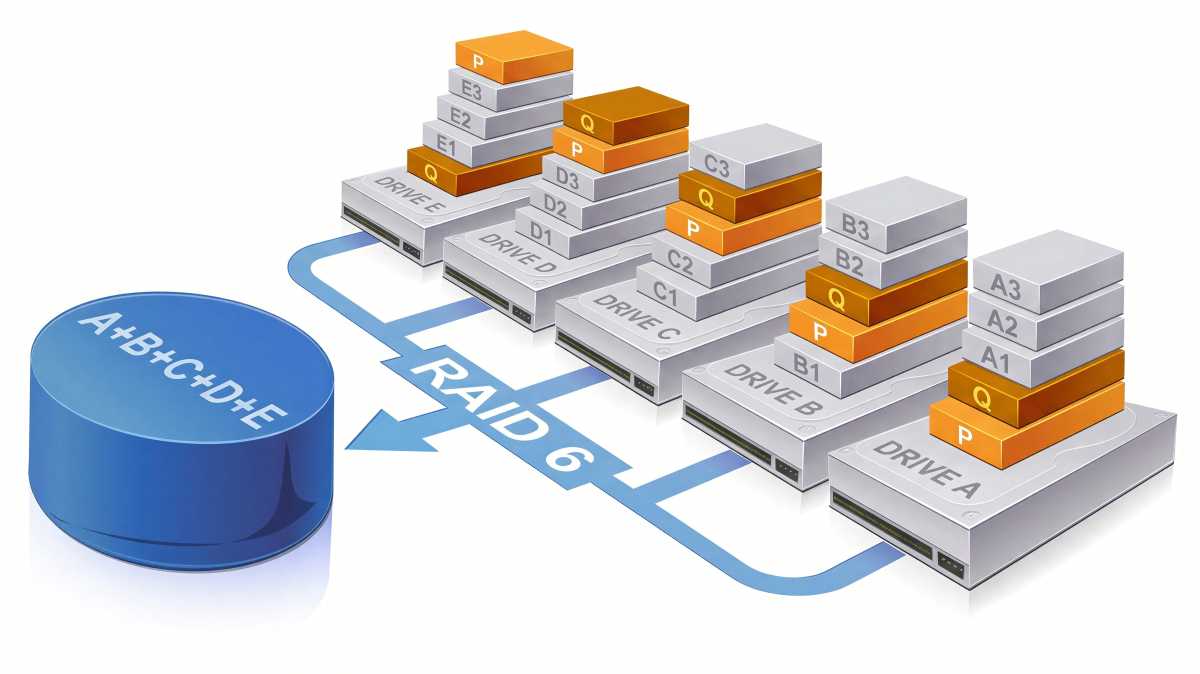
RAID 6 is very much like RAID 5 in that it stripes data blocks and uses distributed parity info. But it also uses twice as much of it, and can withstand the loss of two drives — with the obvious detriment to total capacity. Nevertheless, in situations where you need the highest degree of fault tolerance, RAID 6 is a good choice.
RAID 10 (Striped mirroring — four or more drives)
Also referred to as RAID 1 + 0, RAID 10 mirrors data (RAID 1) across striped pairs (RAID 0) of drives. With this arrangement, you get improved write speed offered by RAID 0 — but you need at least four drives to implement it. And of course, as with RAID 1, 50 percent of the total drive capacity is given over to redundancy.
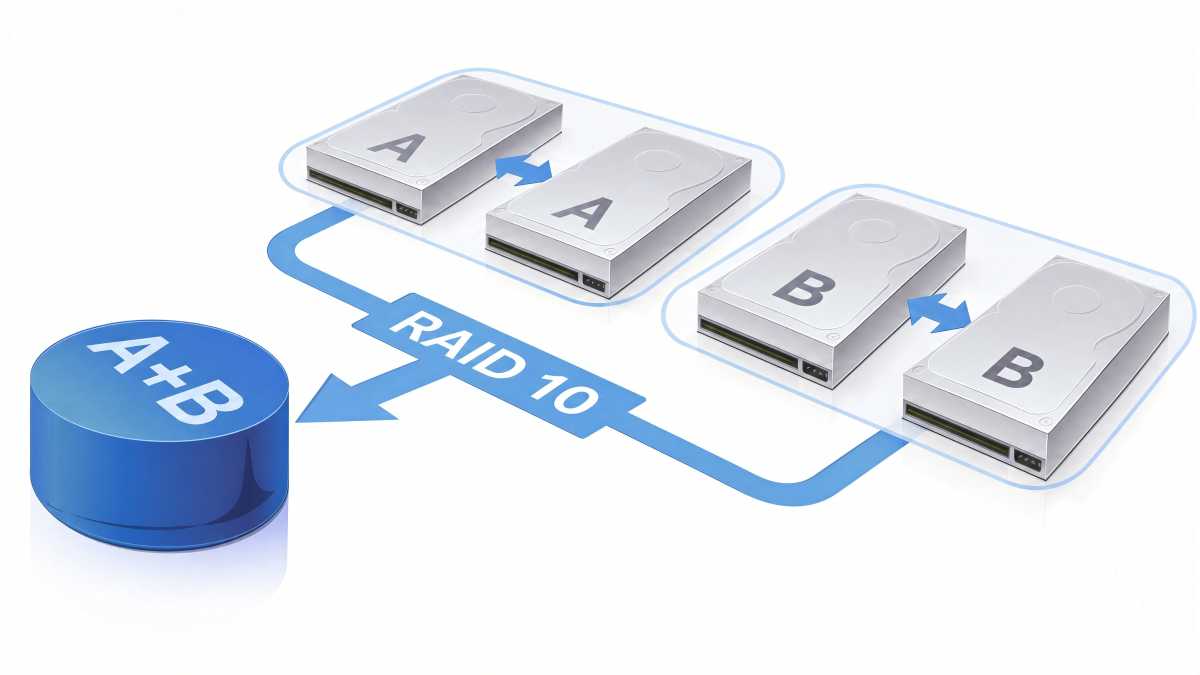
RAID 10 also refers to RAID 0 + 1 which stripes (RAID 0) data across mirrored pairs (RAID 1) of drives. As with 1 + 0, you get some of the speed advantages of RAID 0, but you need at least four drives, and you spend 50 percent of the total drive capacity on redundancy. Same deal, different order.
JBOD (Concatenated — two or more drives)
This is shorthand for “Just a Bunch Of Disks.” It’s not actually RAID, but it is often available as an option on multidisk storage boxes that offer RAID. JBOD provides no speed increase or redundancy. Rather, it simply concatenates a group of disks into a single volume.
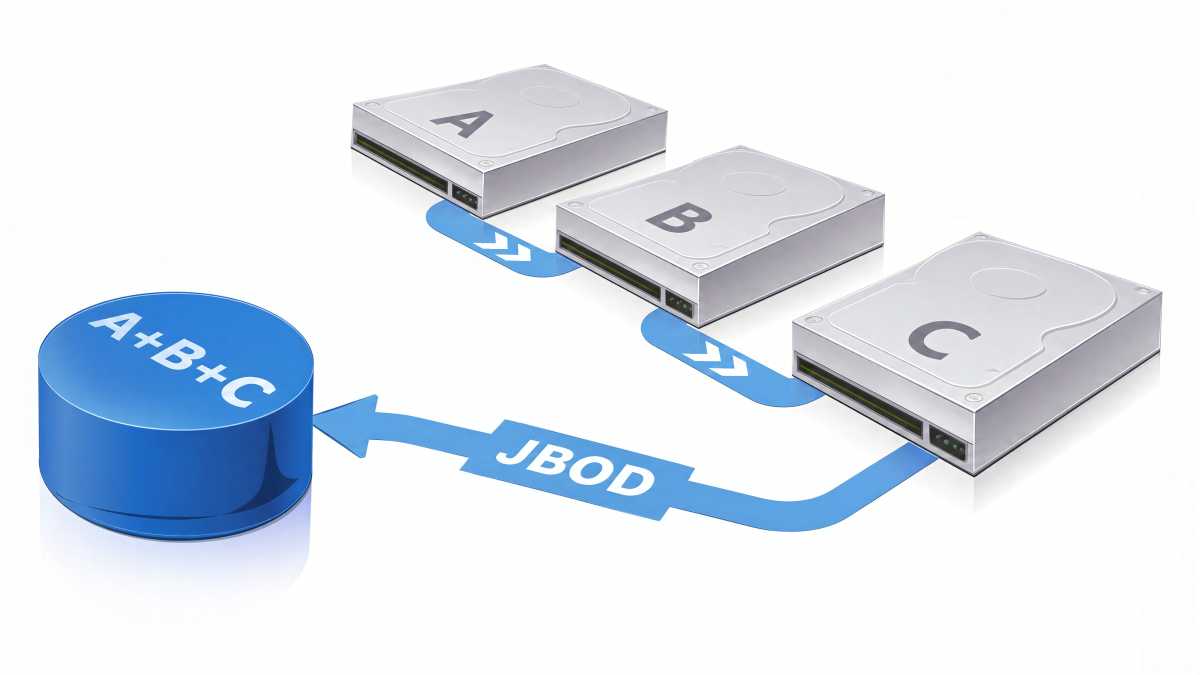
Data is written to the first drive in a JBOD gang until it’s full, then cascaded to the second until that one is full, and so on until the last drive has no more room.
We don’t recommend JBOD unless it’s the only option available to create a large volume (and you really need one). Or, if you have a bunch of drives of differing capacities and don’t have access to pooled/abstracted RAID.
Less common RAID Options
The RAID specification includes several other levels aside from the ones addressed above; however, these are not commonly used anymore due to various drawbacks.
RAID 2 (Striped bits with parity — two or more drives)
RAID 2 distributes data across multiple drives at the bit level (the smallest unit of computer information with a value of either 0 or 1) instead of at the block level.
RAID 2 writes Hamming ECC (error-correcting code) recovery information to dedicated parity disks at the byte level, which requires a lot of processing power.
RAID 3 (Striped bytes with dedicated parity drive — three or more drives)
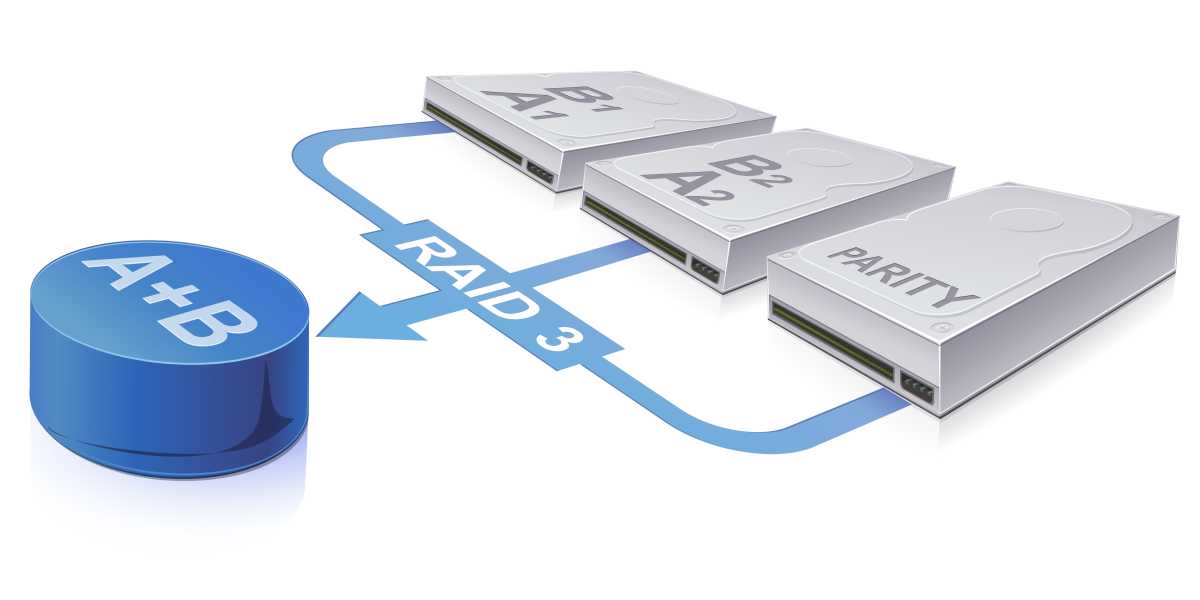
RAID 3 is another mode that got kicked off the consumer island because it doesn’t use data blocks; it distributes data across multiple drives as bytes (8 bits), and like RAID 2 it stores parity information on a dedicated drive.
Dedicated parity drives are great — unless they fail, leaving the array unprotected from further drive failures until they’re replaced and parity rebuilt.
RAID 4 (Striped with dedicated parity drives — three or more drives)
RAID 4 distributes data across multiple drives as blocks but fell into disuse because, again, all parity information is on dedicated parity drives whose failure leave the array unprotected.
Drive Extender (two or more drives)
Microsoft employed this abandoned technology on NAS boxes running Microsoft Windows Home Server prior to version 2011. A smart file replication methodology, drive extender allowed you to configure which data would be replicated on a folder-by-folder basis. This methodology is also known as “copy-on-write” if done in real time, and “copy-after-write” if done later in the background.
Copy-on-write / Copy-after-write (one or more drives, two or more recommended)
These are ways of providing redundancy that aren’t exactly mirroring because the copies may be written to anywhere in a storage pool.
Copy-on-write (COW) is employed in advanced file systems such as ZFS, Btrfs, ReFS, APFS, and Bcachefs. It is essentially real time, while copy-after-write (DrivePool) is deferred until later to preserve performance — at the risk of potentially losing data in the meantime.
COW and CAW can be implemented on a single drive, but that only protects against data corruption and write errors, not drive failure.
Pooled / abstracted RAID
Windows (Storage Spaces), and a number of purveyors of external RAID and NAS boxes offer what is frequently referred to as abstracted or virtual RAID. You’ll find it under many names on many of the advanced operating systems listed in the previous section as well.
“Abstracted” means grouping drives into storage “pools” which are then divvied up into usable logical volumes (C:, D:, etc.). There are two huge advantages to this.
First, logical volumes may employ only a portion of a disk, or expand across multiple disks. E.g. you could pool four 1TB drives, then divide them into a single 500GB volume, a 1.5TB volume, and a 2TB volume.
This flexibility means far less wasted space if you use drives of differing capacity. If you combined a 2TB drive with a 4TB drive in many non-pooled RAID modes, your usable capacity is only 2TB, i.e. the capacity of the smallest drive in the array..
Data redundancy is generally implemented with parity or copy-on-write. This obviously will take up some space in the array.
Storage pools also let you add disks freely, and remove them more easily. Check out Stablebit’s DrivePool to see what this looks like in software form.
Hot Spares
RAID arrays sometimes employ a hot spare, which is simply an extra disk in the array that will automatically be used to replace a failed disk without user intervention.
Choosing RAID: A Cheat Sheet
Trying to determine which RAID level is best for you? Here’s our take.
- First off, use hardware RAID over software RAID when you have a choice. It’s faster, and leaves the operating system free for other work. It is however more difficult to install an operating system on.
- Use RAID 0 when all you want is faster performance with large files, and you don’t need fault tolerance. (But be sure to back up your drives regularly.)
- Use RAID 1 when you have only two drives and you want to protect data against drive failure.
- Use RAID 5 or RAID 10 when you have more than two drives and you want both speed and a hedge against drive failure.
- Use abstracted/pool RAID to derive maximum storage from a collection of drives of different capacities.
Editor’s note: This article was updated on November 24th, 2026 to update information on RAID technology and add images.
This articles is written by : Fady Askharoun Samy Askharoun
All Rights Reserved to Amznusa www.amznusa.com
Why Amznusa?
AMZNUSA is a dynamic website that focuses on three primary categories: Technology, e-commerce and cryptocurrency news. It provides users with the latest updates and insights into online retail trends and the rapidly evolving world of digital currencies, helping visitors stay informed about both markets.
