So you’re dealing with a corrupt USB flash drive. You’ve lost your files; you can’t access them, or when you plug the drive into your PC it’s not even recognized. Understandably you’d be forgiven for pulling your hair out in frustration. But those files need not be lost. Here I give you tips to gain access to your drive and hopefully get your files back.
The telltale signs of a corrupted USB flash drive
There are a number of telltale signs that can indicate some data or software corruption on a flash drive. The first is if you plug in your drive and you can’t open any of the files.
Additionally, there could be some files missing when you know you didn’t delete them.
Another sign is if you plug in a drive and there’s absolutely no response at all. Or you could have a corrupt USB drive if you’re trying to copy or paste something to the drive and it’s not working or it says you need to format the drive for it to work.
All of these signs suggest that something is going wrong with the drive and warrants you trying to recover the data. So, what should you do?
How to recover your data
Method 1: Use data recovery software
Data recovery software is one of the most effective ways of recovering your data. It can access the data on your drive without any help from Windows Explorer or a disk manager.
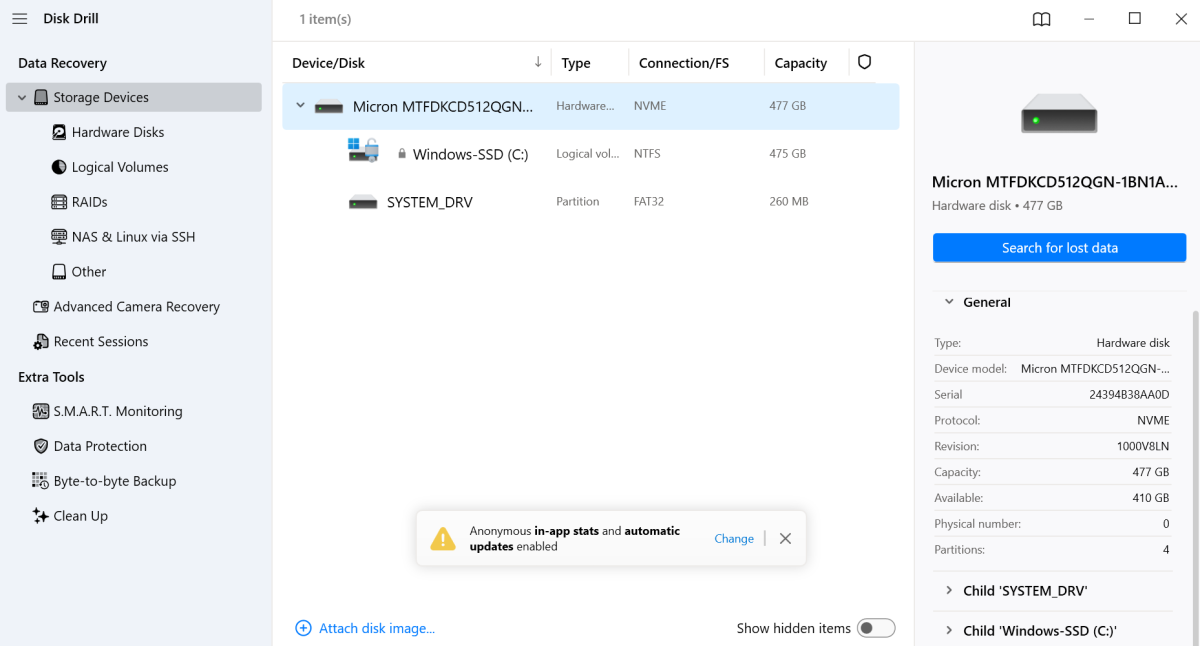
There are lots of data recovery apps out there. But the data recovery software I recommend you use is called Disk Drill, which has some of the most advanced recovery algorithms available. Here’s how to use it:
- Download and install Disk Drill.
- Plug in your USB drive. Once plugged in it will be recognized in the disk list inside the center of Disk Drill.
- You now have to back up your USB drive before you try to recover anything. You can do this in Disk Drill. Go to Extra Tools, then select your corrupted USB drive, and select Byte-to-Byte Backup. Choose a location and give the file a name and save the file.
- Then open up Disk Drill again and open up the Data Recovery panel.
- Click Attach disk image and select the backup file that you just created.
- Select the backup from the disk list, choose Recovery Method, then hit Search for lost data.
- Once the scan is complete, click the blue button at the top, which will take you to all of the files that were found. You can then browse the files.
- Once you’ve found the files you’re looking for, make a checkmark next to them, then hit Recover. Then choose a location to save them to.
Note: Don’t choose the USB drive as the save location for the files, otherwise you risk overwriting them.
Dominic Bayley / Foundry
Method 2: Assign a different letter to your drive
If you plug in the drive and it’s recognized but not in Windows Explorer, it may be that you need to reset some of the metadata in the drive to get it to be read again. You can try assigning a different drive letter to the drive to make it readable again. Here’s how to do that:
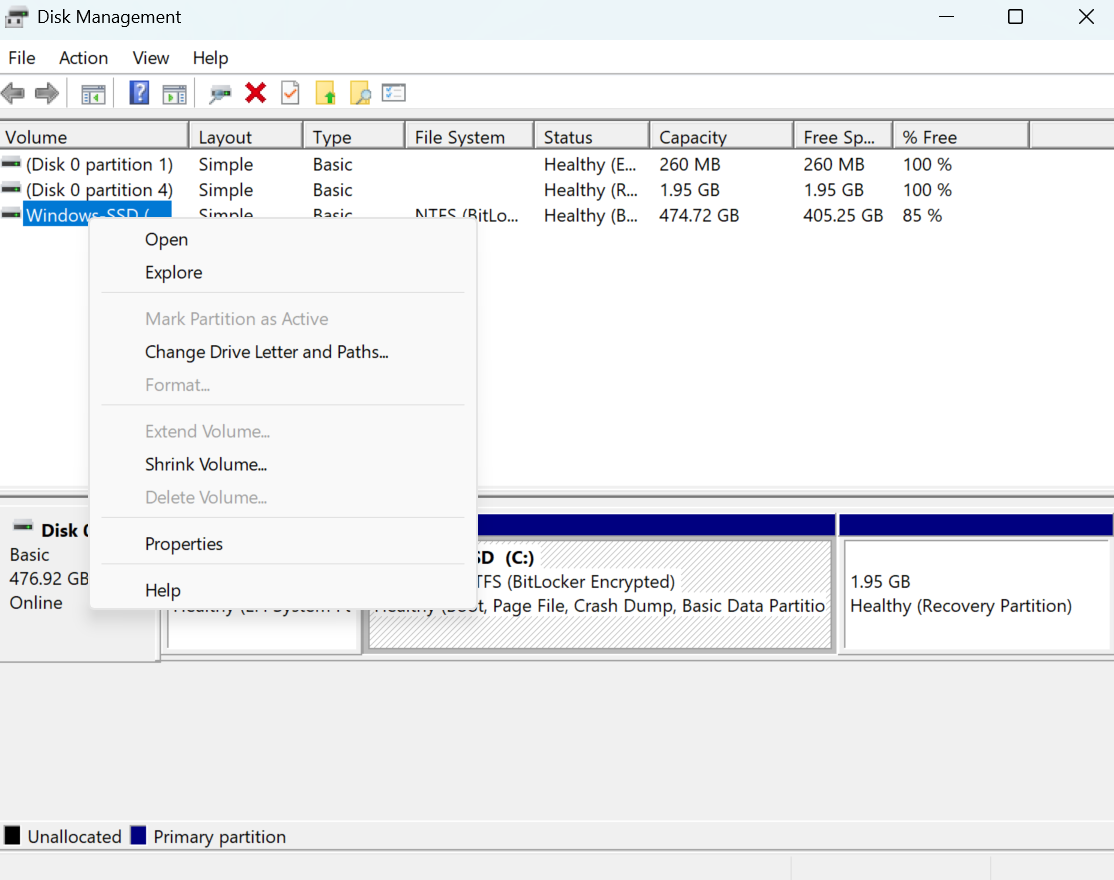
- Right-click the Start icon and select Disk management.
- Right-click on the drive letter for your USB drive and select Change drive number and paths.
- Then click on the drive letter that’s already assigned and click change.
- Choose a new unassigned drive letter and hit OK.
Dominic Bayley / Foundry
Method 3: Reinstall the drivers
The USB drivers are like a communication pathway between the operating system and the device. It’s like an extension of the software that if it gets interrupted means the drive won’t be readable. Here’s how to reinstall the drivers to reconnect that communication pathway:
- Make sure the drive is plugged in.
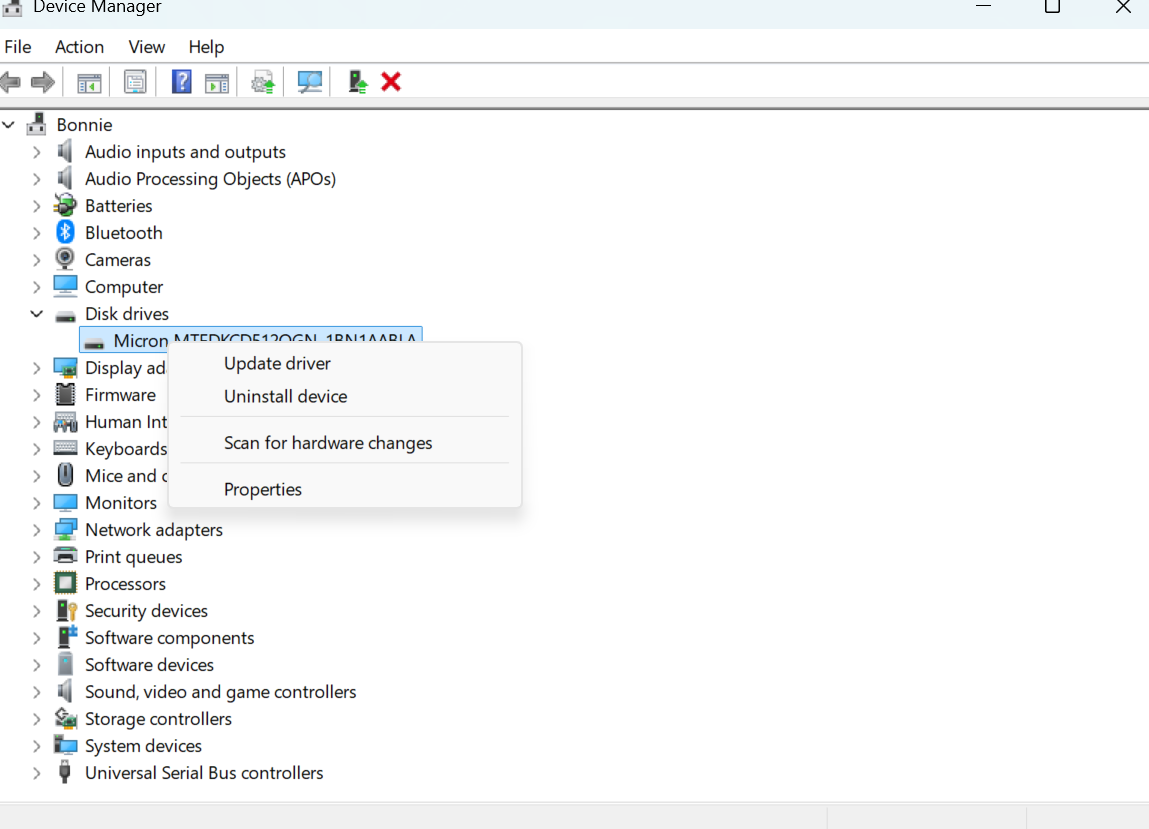
- Right-click the Start icon and select Device manager.
- Expand the drop-down list for your disk drives.
- Right-click on your USB drive and select Uninstall device.
- Then unplug your USB drive and plug it back in again. This will trigger the latest drivers to be downloaded and installed automatically.
Dominic Bayley / Foundry
Hopefully one of those three methods has made your drive readable and allowed you to save your precious files. The first method is the easiest, so try that one first. That’s the best you can do with a corrupted USB drive. But to prevent corruption in the future remember to always remove your USB drive from your PC properly by clicking on the eject drive icon in the System Tray rather than removing it while it’s busy.
You should also have a good pre-emptive backup plan for all of your drives. See our roundups of the best Windows backup software and best online backup services for recommendations.
Related content
This articles is written by : Fady Askharoun Samy Askharoun
All Rights Reserved to Amznusa www.amznusa.com
Why Amznusa?
AMZNUSA is a dynamic website that focuses on three primary categories: Technology, e-commerce and cryptocurrency news. It provides users with the latest updates and insights into online retail trends and the rapidly evolving world of digital currencies, helping visitors stay informed about both markets.
