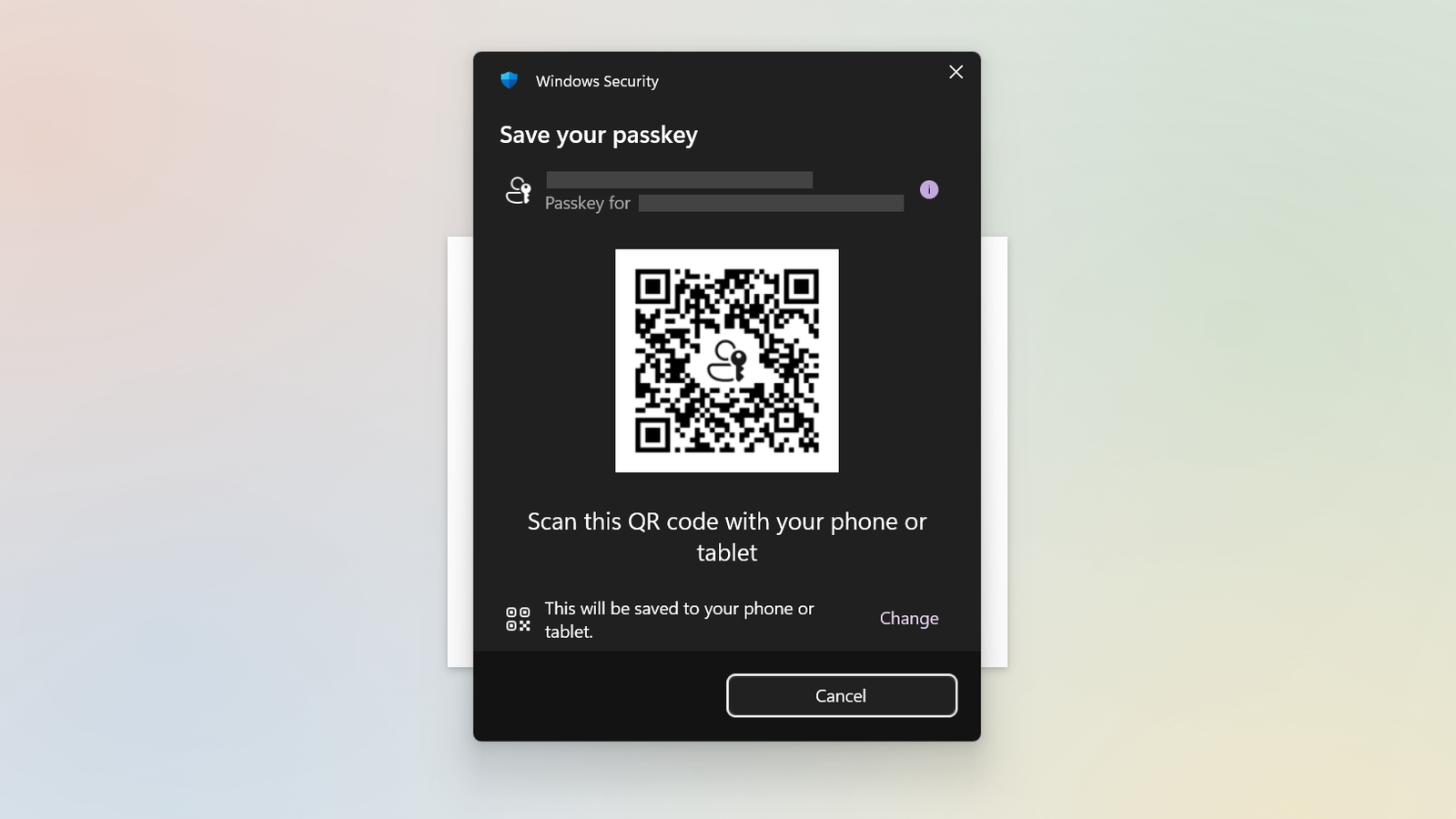
Passwords? Left behind in the dust. You’ve moved on to passkeys—but you may not have locked them down properly.
Most people use their phones, password manager, or PC to store passkeys. Each has their advantages, but they should be secured in slightly different ways. You may also not have covered your butt in the event you ever lose access to those devices.
Here’s how to get everything in order.
Cloud-saved passkeys
PCWorld
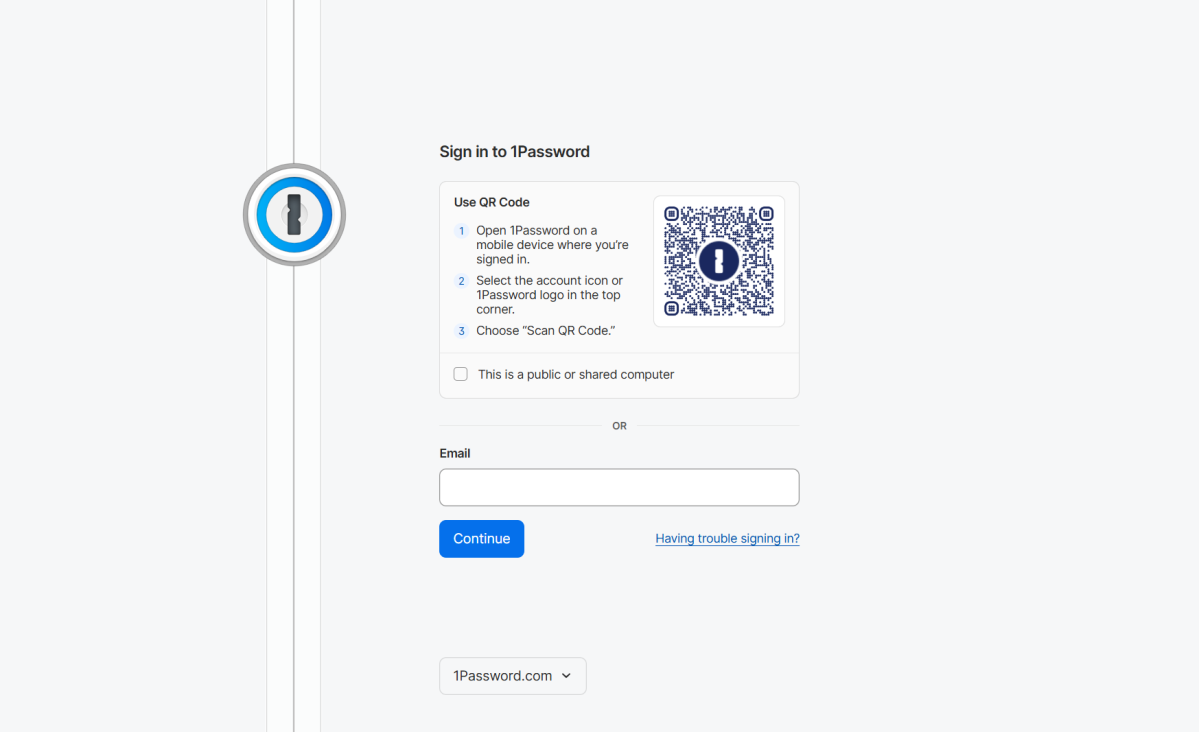
If you save your passkeys to your phone or an independent password manager, they live in the cloud. Same goes for if you save them while logged into a Microsoft account in Edge or a Google account in Chrome.
Because passkeys stored in the cloud can be used across devices, you must safeguard the account holding them to prevent misuse. Set a strong, random, and unique password + two-factor authentication.
Also be smart about which cloud-based password manager you use. Independent password managers may not be as vulnerable (or targeted) as Google’s, which can end up exploited if you’re logged into Chrome. (A attack of this sort has already happened, with successful use of stored passkeys.)
Device-bound passkeys
YubiKey
The easiest way to avoid putting your passkeys in the cloud is to save them to your Windows PC. You’ll be required to set up Windows Hello to protect them. I recommend at least a 6-8 digit PIN, if you don’t use biometrics.
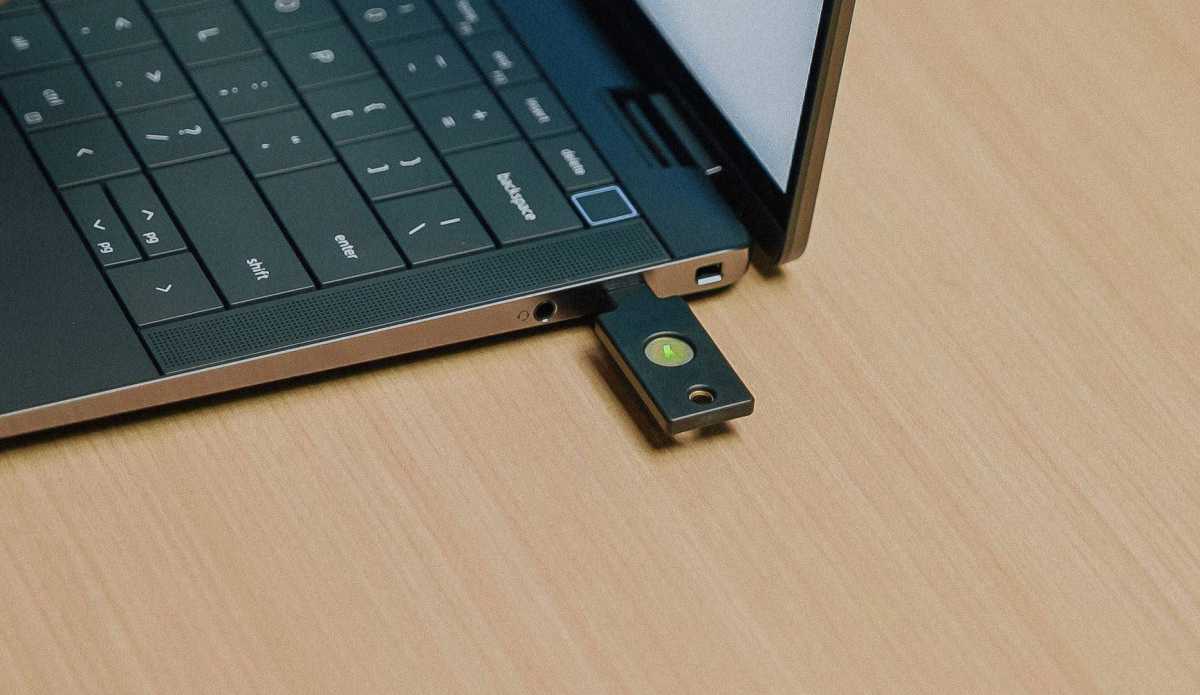
A dongle like a YubiKey or Google Titan Security Key can also securely hold passkeys offline. To lock one down, you’ll create a PIN. The minimum recommended is 6 digits—when asked, Yubico spokesperson Ryan Schin said, “The recommendation would generally be a 6-digit PIN length for all YubiKeys for greater security.” (In fact, business-specific YubiKeys actually require it.)
Worried that’s not enough? Then specifically choose a YubiKey, which will require a full wipe and reset after eight failed PIN entries. This feature protects against brute force attacks (trying multiple combinations of PINs over and over).
Make backups!
A passkey is like a house key—if you only have one and you lose it, you end up locked out. But in this case, no one can reset the lock or otherwise pry the door open.
You’ll want to create extras, as backup. Additionally, you may want to consider leaving one with a trusted contact in case of emergency.
How? If you have cloud-based passkeys, create an additional one on your PC or hardware security key. The security keys start at $30 to $35, making them relatively inexpensive. You can even pick up YubiKeys from local retailers like Best Buy.
Alternatively, ensure you at least have access to another device logged into the account with the cloud-based passkeys. One easy, cheap option is to use an old phone, ideally one still getting modern security updates.
As for device-based passkeys, I always recommend having one on at least two different security keys or one PC and one security key. More is better.
This articles is written by : Fady Askharoun Samy Askharoun
All Rights Reserved to Amznusa www.amznusa.com
Why Amznusa?
AMZNUSA is a dynamic website that focuses on three primary categories: Technology, e-commerce and cryptocurrency news. It provides users with the latest updates and insights into online retail trends and the rapidly evolving world of digital currencies, helping visitors stay informed about both markets.
