I’ve been intrigued by AI photo editors for a while now. Some work well, some not so well. Photoroom falls into the former camp. By and large, I found the AI tools to be very impressive and intuitive to use. There are some caveats to that which I’ll get into, but overall, Photoroom delivered what it promises.
But what does it promise, exactly? Now, compared to a lot of AI photo editors, things here are a little different. This isn’t a platform for touching up your holiday snaps or brightening up social media posts.
The emphasis here is on business use. Effectively, if you run an online store or similar, then you use Photoroom to transform staid, dull product shots into more enticing and engaging imagery that pops off the page.
Keen to see how it’s developed since we last reviewed it three years ago – AI has come a long way since then – I tried out the platform to see what I could create.
Photoroom: Pricing & plans
- Online service via browser, iOS and Android app
- Aimed at businesses large and small
- Reasonably priced subscriptions and free trial
You can check out Photoroom by clicking here.
The platform is available online through a dedicated app for your iPhone or Android phone, or if you’re working on a computer, via your favourite web browser. Unlike many I’ve tested, you’re not restricted to either Chrome or Edge here.
As with any online service, you need to subscribe to it to use it with a monthly cost billed annually. Photoroom comes in three tiers.
‘Pro’, recommended for ‘solopreneurs’, will cost you $13 per month, billed annually. This level grants you 4,250 AI credits monthly, allows you to perform 1,000 exports, and comes with Photoroom’s standard set of tools.
The middle tier is ‘Max’ and is designed for small businesses. For $35 a month (again, billed annually – all tiers are), your credits are upped to 12,000, your exports to 3,000, and the advanced ‘Video Generator’ tool is now available.
Finally, there’s ‘Ultra’, for “growing brands”. You’re given 20,000 AI credits,10,000 exports, and can create videos and images in 4K, all for $100 a month.
If you’re looking for a more bespoke option, there’s a tailor-made Enterprise tier, with a tailor-made cost to match.
I recommend checking prices as Photoroom often offer discounts on those standard prices. Plus, you can try any of these tiers free for seven days, although don’t forget to cancel your trial before that should you decide not to carry on with the service and you’re needlessly charged a hefty sum for your forgetfulness.
Photoroom was generous enough to grant me access to their Ultra tier, so let’s see what it’s capable of, and what you can do with all those AI credits.
- Pricing & plans: 4 / 5
Photoroom: Interface
- Simple, well designed, and clear interface
- Easy ways to import images and work on them
- For an online service, I was impressed
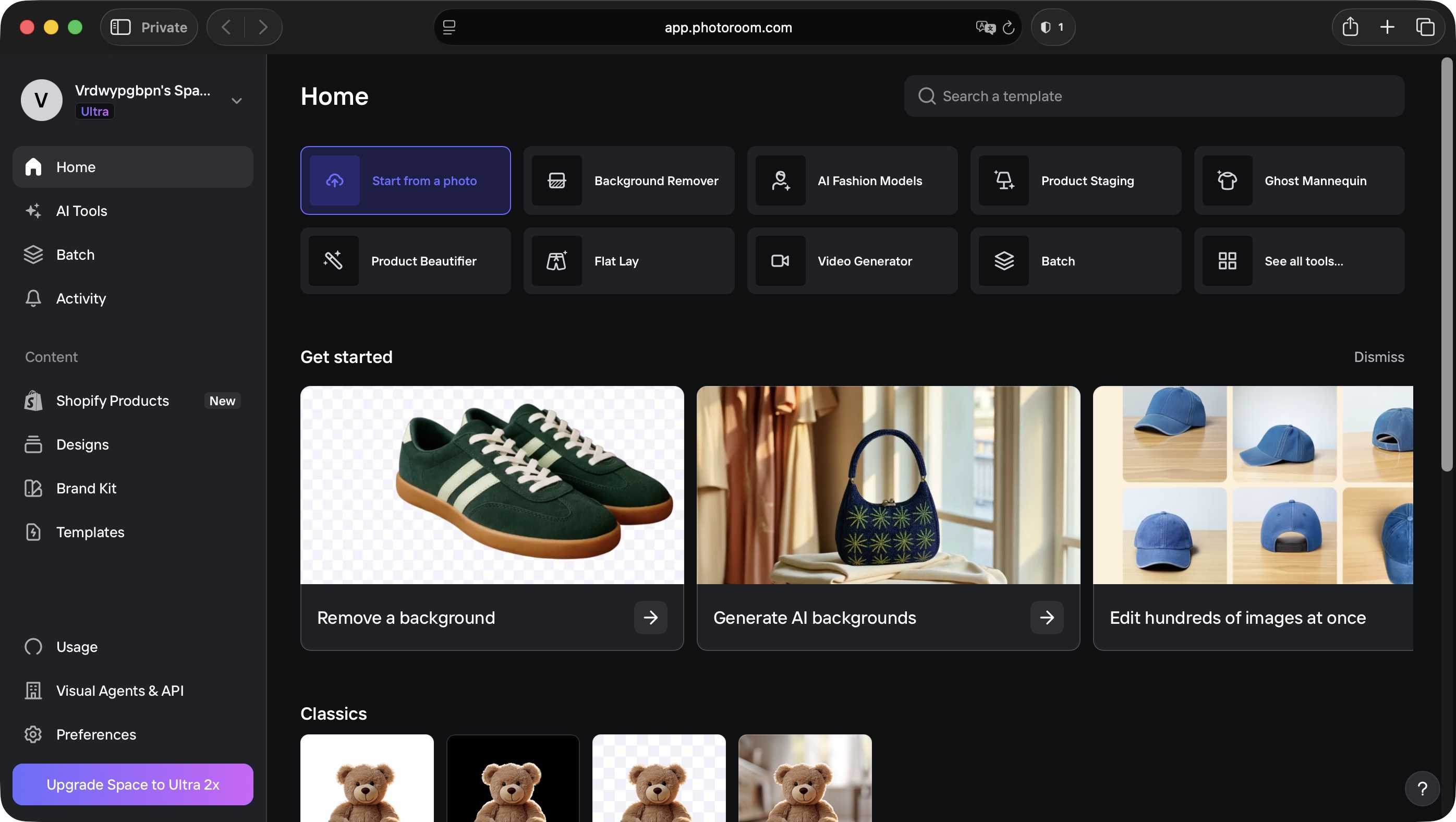
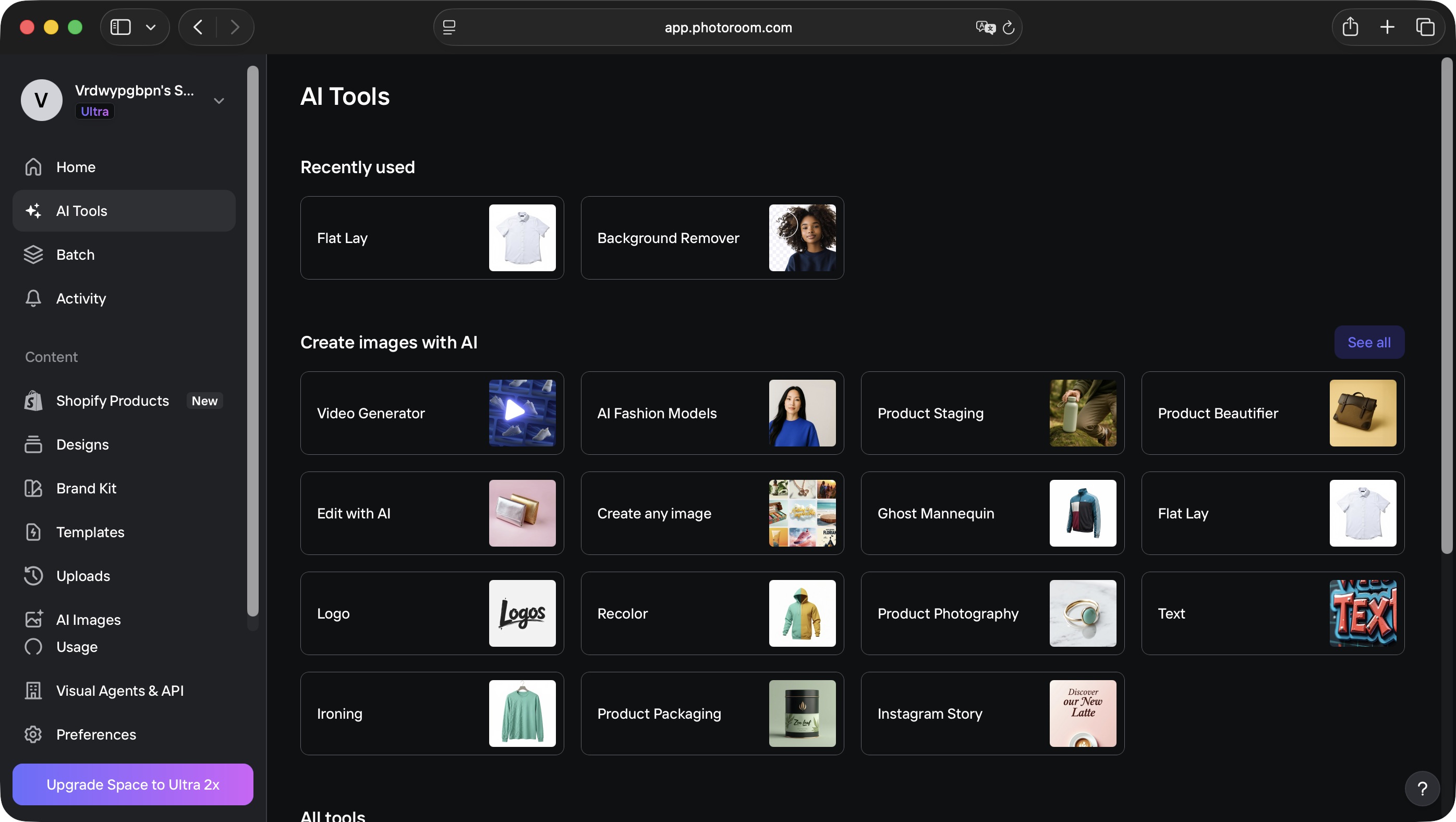
The interface is simple and well organised. Once you’ve logged in to your account, you’ll find a sidebar to the left which contains various tools you need.
Thiss includes all the AI tools in your arsenal, templates, a direct link to your Shopify account if you have one, a batch tool so you can work on up to 250 images at once, a Brand Kit where you keep all your assets, and a Design section where your products’ photos are stored.
All the AI tools, which are essentially all your editing tools, are easy to use: you select one, upload a new photo or select one already in your account, apply the effect and you’re done.
There is one thing that I found surprising: Photoroom supports HEIC, the High Efficiency Image Container. It’s a highly compressed image format that’s been around since 2015 and has been increasingly prevalent since Apple made it the default image format for their iPhones in 2017.
The reason I make a point of mentioning this is because far too many services still do not support it, forcing any image or photo saved as an HEIC to be converted into either a JPEG or PNG prior to import. There is no such issue here, saving you time and frustration.
- Interface: 4.5 / 5
Photoroom: Tools
- On the whole, the AI tools do an absolutely excellent job
- Impressive ways to transform passable shots into something potential customers will love
- But… not all tools are created equal
Such a service succeeds on the strength of its tools, and Photoroom iss betting the farm on AI for this. But AI is a very generic term these days. Is it really artificial intelligence to remove an image’s background?
I’d put it more in the “complex algorithm does a very good job with what it’s given” category. Same with removing objects or people from a photograph and replacing it with an artificially generated background that blends with the existing one.
Such tools already existed before “AI” became an all-encompassing marketing brand. Or, taking inspiration from Monty Python’s The Life of Brian, “it’s not AI, it’s a very clever tool”.
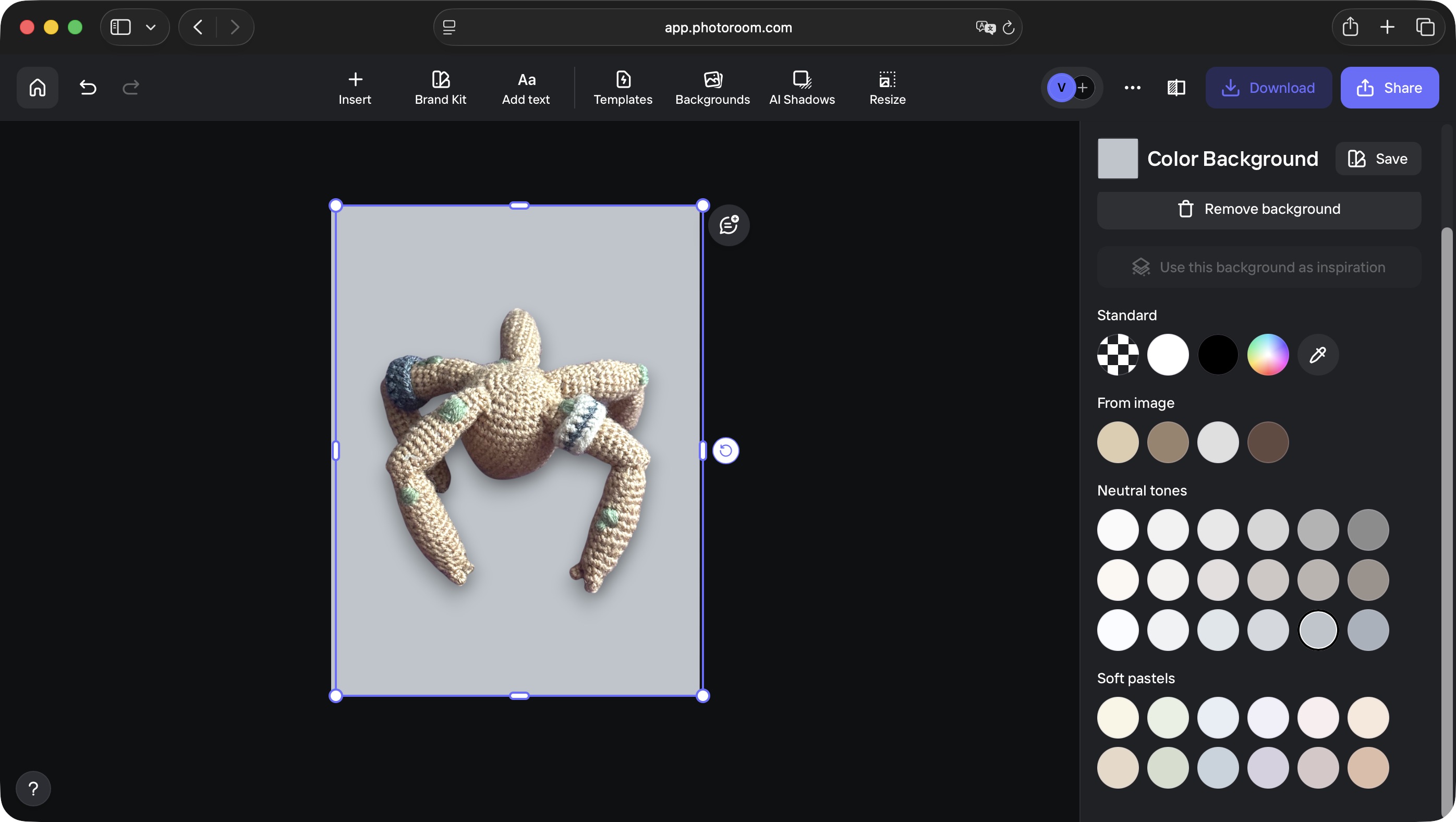
But whether it’s AI or not is less important than how these tools fare: I found the achieved results to be excellent. More often than not in apps like Photoshop or Pixelmator Pro, I end up having to touch up the output of similar tools, but here, it was essentially a one-click wonder.
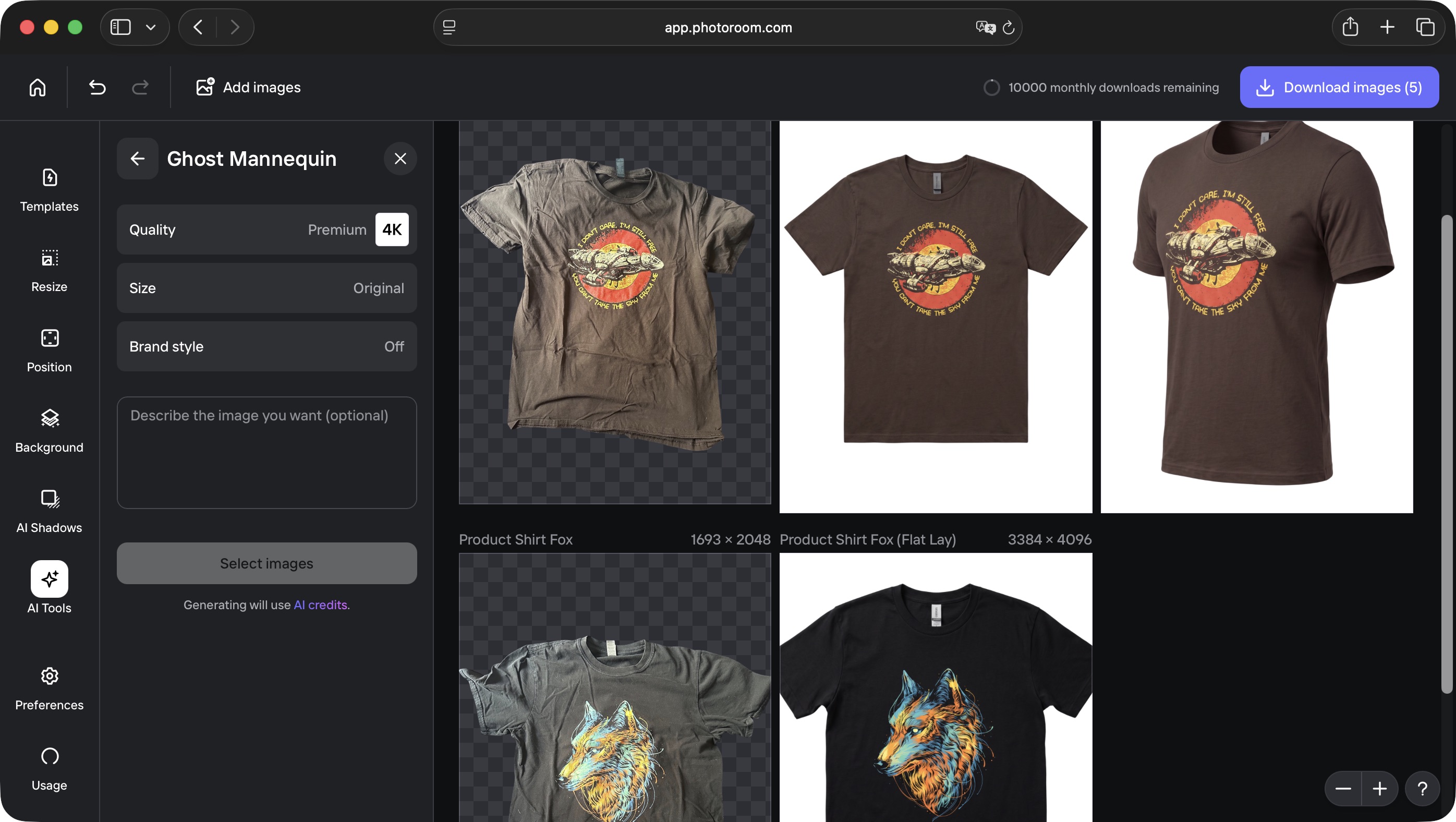
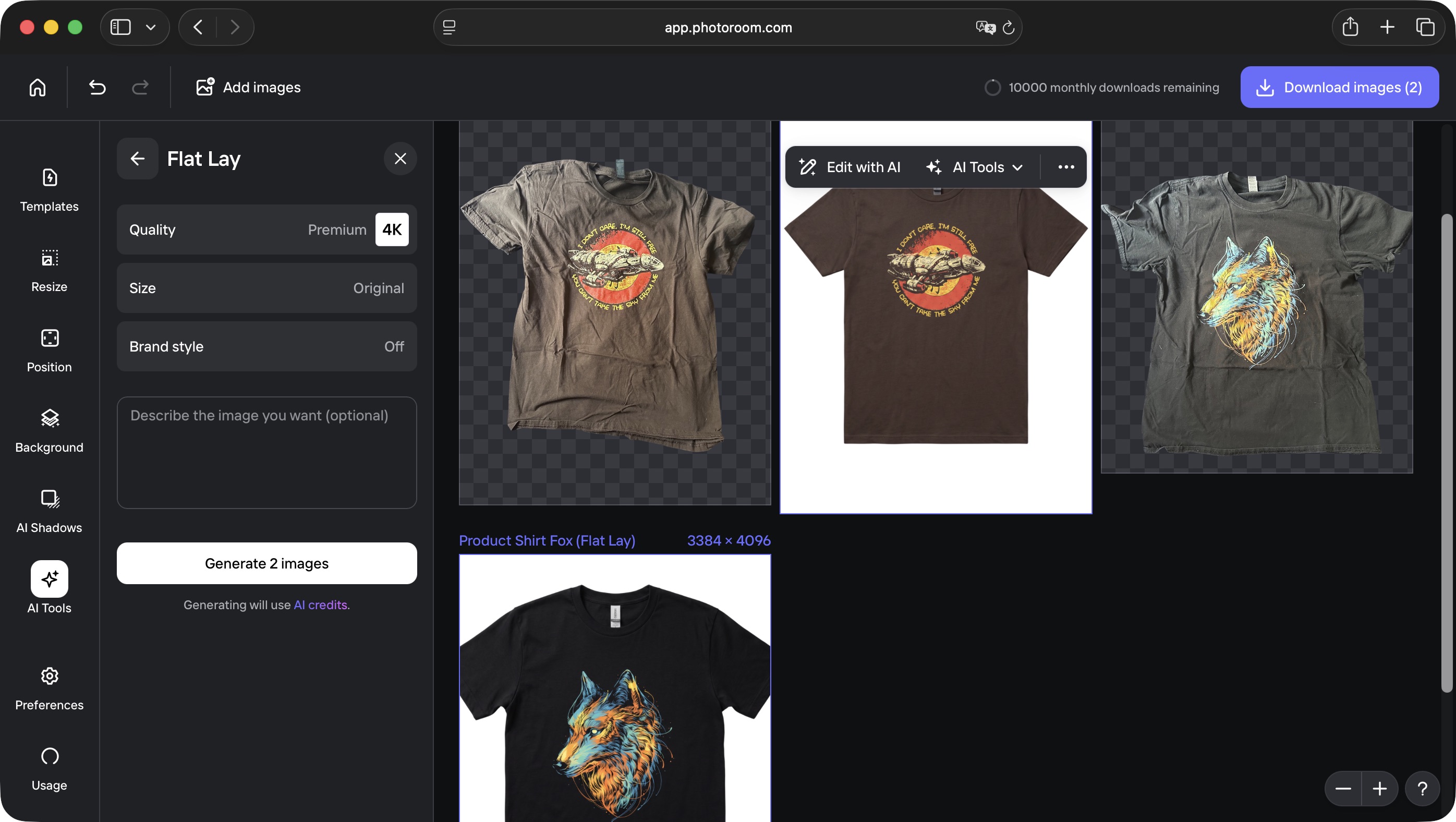
Tools that really impressed me were definitely more AI based. Say you want to sell a shirt, which you’ve photographed on a surface, with as few wrinkles as you can manage… except you know how it is: such layouts are never really good enough.
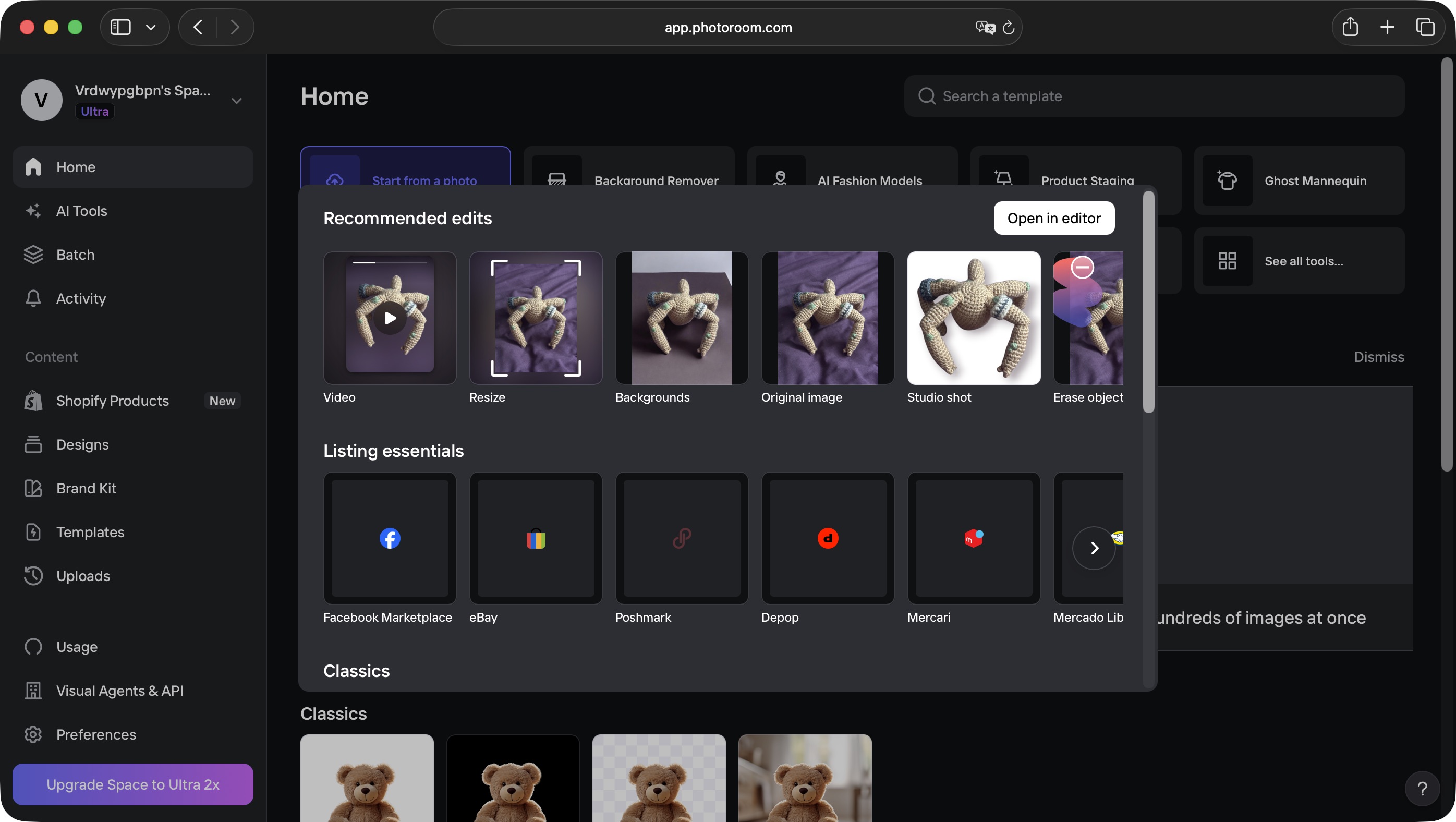
Well fret no more: Photoroom has a tool that digitally irons your shirt for you, transforming your amateurish-looking photo into a meticulously smooth out product. Couple that with the background remover tool, and you’re well on your way to have a professional looking photograph.
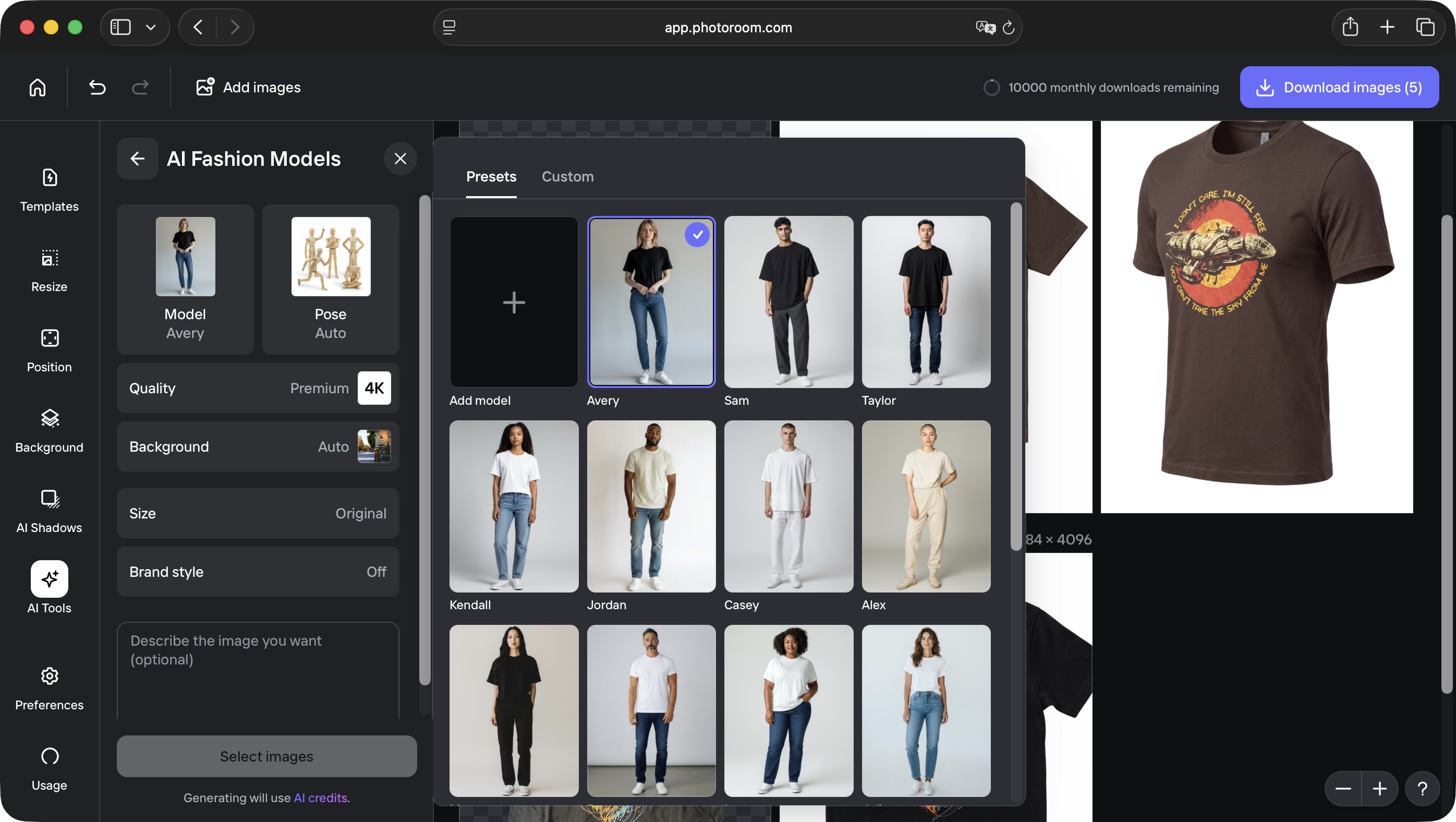
But why stop there? Photoroom has a bunch of AI-generated models who can wear your outfit for you. There’s even what they call a ‘ghost mannequin’ to puff up your shirt so customers can see what it would look like on someone, without being distracted by an actual (or virtual) person wearing it.
I found all this pretty incredible, and that’s just scratching the surface. It’s not all sunshine and rainbows though: for instance, Photoroom has a Video Generator.
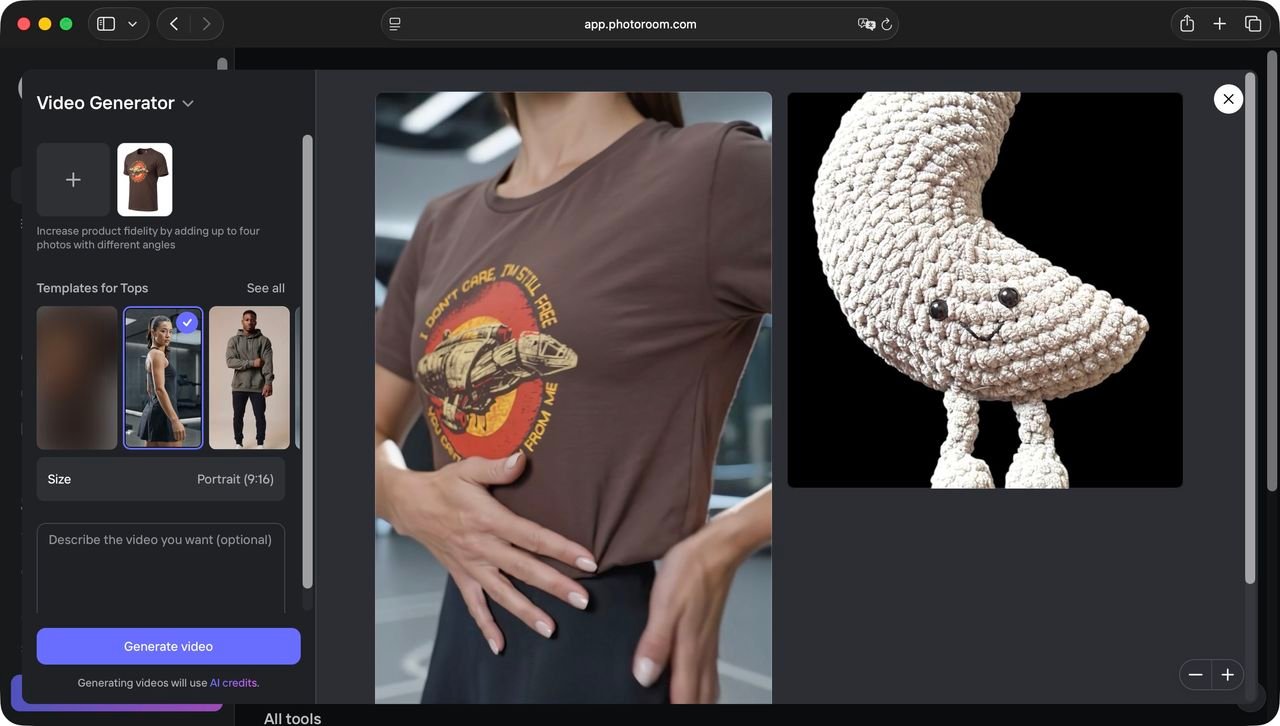
Select a photo, browse through all available templates, maybe even type in a prompt if you need, and the AI will get to work… this is where I encountered the familiar “AI tries way too hard yet fails miserably” syndrome.
Some templates removed my test products from the usual confines of physical reality, sometimes in a most disturbing way. Or they just didn’t work at all as expected. I trust the team working hard on this aspect of the service (what I was able to use bore no relation to their intro video about it, so things are moving fast in this arena), but for now, maybe stick with still images, where the results are truly impressive.
Photoroom: AI credits
- Set number of monthly credits, so use them wisely
- Many common AI tools don’t cost any credits at all
- However, sometimes, the requested action won’t work, so try, try again
As you’d expect, most AI tools will cost you credits. A video generation goes for 500 (money not well spent for now), Exporting an image at 2K or 4K will cost you 135 and 240 credits respectively, adding an AI background to an image is worth 5 credits, and so forth.
Thankfully though, some tools you’ll use most often, like removing the background of a shot, retouching a photo or performing some image enhancements won’t cost you a thing (beyond your subscription).
You’ll just have to balance what you are given each month with what you hope to achieve in that time period, with the relief that when an action doesn’t work, you won’t have lost any credits – yes, sometimes an error occurs.
However, I found that if I request the same action again – and again – it finally does what I asked it to. Teething problems, I’m sure, and at least it does work impressively well eventually.
Should I buy Photoroom?
Buy it if…
You’re looking to sell a ton of product and want the images advertising your wares to look their best, using a service that is well designed, and is easy to use (when it works)
Don’t buy it if…
You don’t want to encourage the proliferation of AI, know your way around Photoshop anyway, and can’t justify yet another subscription, no matter how great some effects are.
How I tested Photoroom
I tested this service on my trusty Apple MacBook Pro. Generally I do my best to check how software works on a variety of devices, both Macs and PCs and portable devices, when needed.
But as this was an online service, whose tools are dependent on servers the main bottleneck would be my fibre connection. I experienced no issues on that score.
Everything was extremely responsive. The free tools were nearly instantaneous, and depending on the complexity of what I was asking the AI to do, it took gradually longer.
Video creation took the longest amount of time, clocking in at around 4 minutes for me. Still, that didn’t feel like a long time, when I got it working.
For more creative tools, we tested the best photo editors.
This articles is written by : Fady Askharoun Samy Askharoun
All Rights Reserved to Amznusa www.amznusa.com
Why Amznusa?
AMZNUSA is a dynamic website that focuses on three primary categories: Technology, e-commerce and cryptocurrency news. It provides users with the latest updates and insights into online retail trends and the rapidly evolving world of digital currencies, helping visitors stay informed about both markets.
