
If your Windows PC won’t start properly or keeps crashing, Safe Mode can help you identify the cause and fix the problem.
In Safe Mode, Windows only loads the most essential drivers and services, skips third-party autostart programs, and uses a simple graphical user interface. This allows you to disable faulty drivers, software, or malware–since these do not run in Safe Mode.
Starting Safe Mode, Windows 10 and 11
There are several ways to start Windows in Safe Mode, depending on whether your system still boots up normally or not.
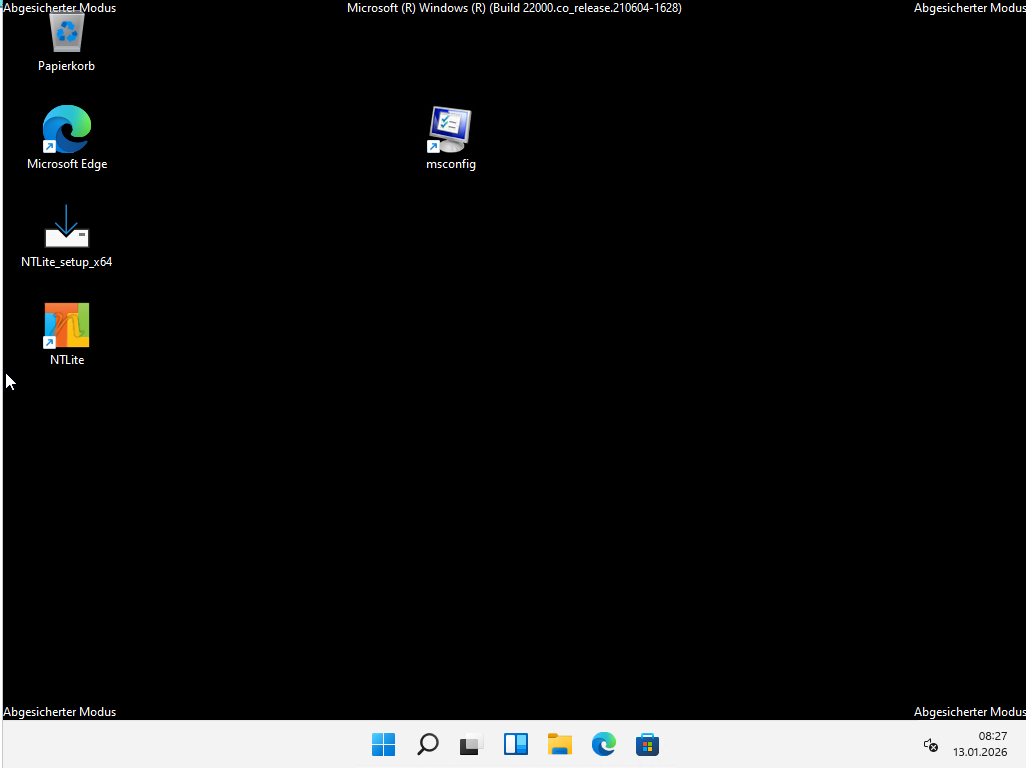
Open “msconfig” using the search field on the taskbar. Switch to the “Startup” tab, activate “Safe Mode” and “Minimal,” then click “OK” and restart your PC. This will start Windows in Safe Mode.
To return to the full operating system later, open “msconfig” in Safe Mode and uncheck the box. After restarting, Windows 11 will start normally.
Thomas Joos
If Windows 11 fails to start after the third attempt, the system will automatically enter automatic repair mode. Here, in addition to the numerous options for system recovery, you can also change the startup settings. These can be found under “Troubleshoot” > “Advanced Options” > “Startup Settings” > “Restart.”
A menu will then appear, letting you to start Windows 11 in different modes. Press “4” to start Windows 11 in Safe Mode.
Troubleshooting problems in Safe Mode
Safe Mode only loads the most basic drivers and Windows services, providing a simple desktop interface in low resolution. Since no third-party software starts automatically, you can determine whether the problem is caused by Windows itself or by your hardware. If the error no longer occurs in Safe Mode, it’s most likely due to software or drivers that load in normal mode.
A sensible approach is to remove the most recently installed programs or drivers from Windows and restart the system to see if it works properly. To uninstall drivers, open the Device Manager via the context menu.
Use the context menu to open “Properties” and switch to the “Driver” tab. In some cases, you can use “Previous Driver” to switch back to a working version of the installed drivers. If this doesn’t work, you can simply uninstall the device from the context menu.
The Start Settings menu also includes an option called “Enable Low-Resolution Video” (VGA mode). While this isn’t Safe Mode in the true sense of the word, it can be useful if a misconfigured graphics driver prevents the normal display from working.
Troubleshooting in Safe Mode: Important measures
Once your system has booted into Safe Mode, you can start troubleshooting and repairing. If an installed program is causing Windows to malfunction, open “Settings” via the Start button’s context menu. Here you can uninstall programs from Windows under “Apps.” By default, the Windows Installer service is disabled in Safe Mode, which may prevent the uninstallation of MSI-based setups.
If you encounter an application that cannot be removed this way, we’d recommend using the Troubleshooter tool from Microsoft. You can download this from the Microsoft website and run it in Safe Mode. It often helps to repair botched installations or uninstallations.
Limit startup programs and services
A major advantage of Safe Mode is that no external autostart programs are loaded, only essential Windows services run. If the problem doesn’t occur in Safe Mode, it’s likely caused by a program or service that starts automatically with Windows. To narrow down the suspects, you can do the following:
Press Ctrl Shift Esc to open Task Manager and switch to the “Startup” tab. Here, you’ll see all the programs that launch when Windows starts. Disable all unnecessary entries on a trial basis by right-clicking on the program and selecting “Disable.” Then restart the PC in normal mode. If it now runs stably, gradually reactivate the startup programs identify the one causing the issue.
Some problems are caused by background services that are not listed in the Task Manager startup. To manage these, use msconfig: press Win + R, type msconfig, and go to the “Services” tab. Check “Hide all Microsoft Services” to exclude Windows services, then click “Disable all.” Restart normally, and once the system is running, re-enable services using a process of elimination.
To keep track of all startup items, we recommend the Microsoft Sysinternals tool Autoruns. Download Autoruns and start it in Safe Mode. The tool lists all autostart entries, and you can hide Windows entries using the options bar. Problematic programs are often marked in red or yellow. Do not disable or delete anything that you cannot identify with certainty.
Check and repair system files (SFC, DISM) and check data carriers (CHKDSK)
Damaged or missing system files can lead to strange errors and instability. In Safe Mode, you can check Windows itself for damage and repair it without other processes interfering. System File Checker (SFC) is a Windows internal tool that checks the integrity of all protected system files and replaces damaged files with correct versions. Here’s how to run it:
Open a command prompt with administrator rights. Press Win + R, type cmd, and then Ctrl Shift Enter. This will start the command prompt as an administrator. Next, enter the command sfc/scannow and press Enter. Windows will now start scanning the system files. This will take a few minutes. You’ll then receive a message telling you whether everything is OK or which files are being repaired.
DISM (Deployment Image Servicing and Management) is a powerful tool that can repair the Windows component store, which is t he source SFC uses to obtain intact system files. Run DISM if SFC reports errors it cannot fix, or if you suspect deeper system issues. Enter the following command:
DISM/Online/Cleanup-Image/RestoreHealth
Wait until the process is complete. If DISM reports “The operation completed successfully,” start sfc/scannow again to fix any remaining errors. This combination of SFC and DISM is often enough to bring a previously temperamental Windows back to its senses.
In Safe Mode, you can run chkdsk to check your system partition for errors and repair them. Type chkdsk C:/f and press Enter. Since the system drive is currently in use, schedule the check for the next restart. Confirm with “Y” and press Enter. Restart the computer. During startup, CHKDSK should now take effect, checking the hard drive and correcting any file system errors.
Use System Restore
If your system stops working properly after a change, you can use System Restore to reset Windows to an earlier, working state. System Restore can be launched in Safe Mode, even if crashes prevent it from running in normal mode.
This lets you undo driver or registry changes without affecting your personal files. To use it, call up “rstrui” and follow the wizard to select a restore point. Note that System Restore must be set up in advance, which you can do via the “System Protection” tab in sysdm.cpl, accessible through the search bar.
Enable boot logging for driver analysis
If your PC crashes or freezes during normal startup, enabling boot logging can be helpful. Windows creates a log file called “ntbtlog.txt” that lists all loaded drivers, allowing you to identify which driver loaded just before the crash. You can then uninstall it using the methods described above.
In Safe Mode, open msconfig (see above). Go to the “Startup” tab and tick the “Startup Logging” box. Apply the changes and restart your PC. Let it boot until it crashes or freezes, then restart in Safe Mode to evaluate the log file. You will find the file in the “C:Windows” directory. Pay attention to driver names that belong to third-party software.
Analyzing blue screens with BlueScreenView
Blue screen errors (BSODs) can be frustrating, but their stop codes and crash dumps offer clues about the cause. In Safe Mode, you can use the BlueScreenView tool (from NirSoft) to read minidump files and find out which driver or file caused the crash.
This articles is written by : Fady Askharoun Samy Askharoun
All Rights Reserved to Amznusa www.amznusa.com
Why Amznusa?
AMZNUSA is a dynamic website that focuses on three primary categories: Technology, e-commerce and cryptocurrency news. It provides users with the latest updates and insights into online retail trends and the rapidly evolving world of digital currencies, helping visitors stay informed about both markets.
