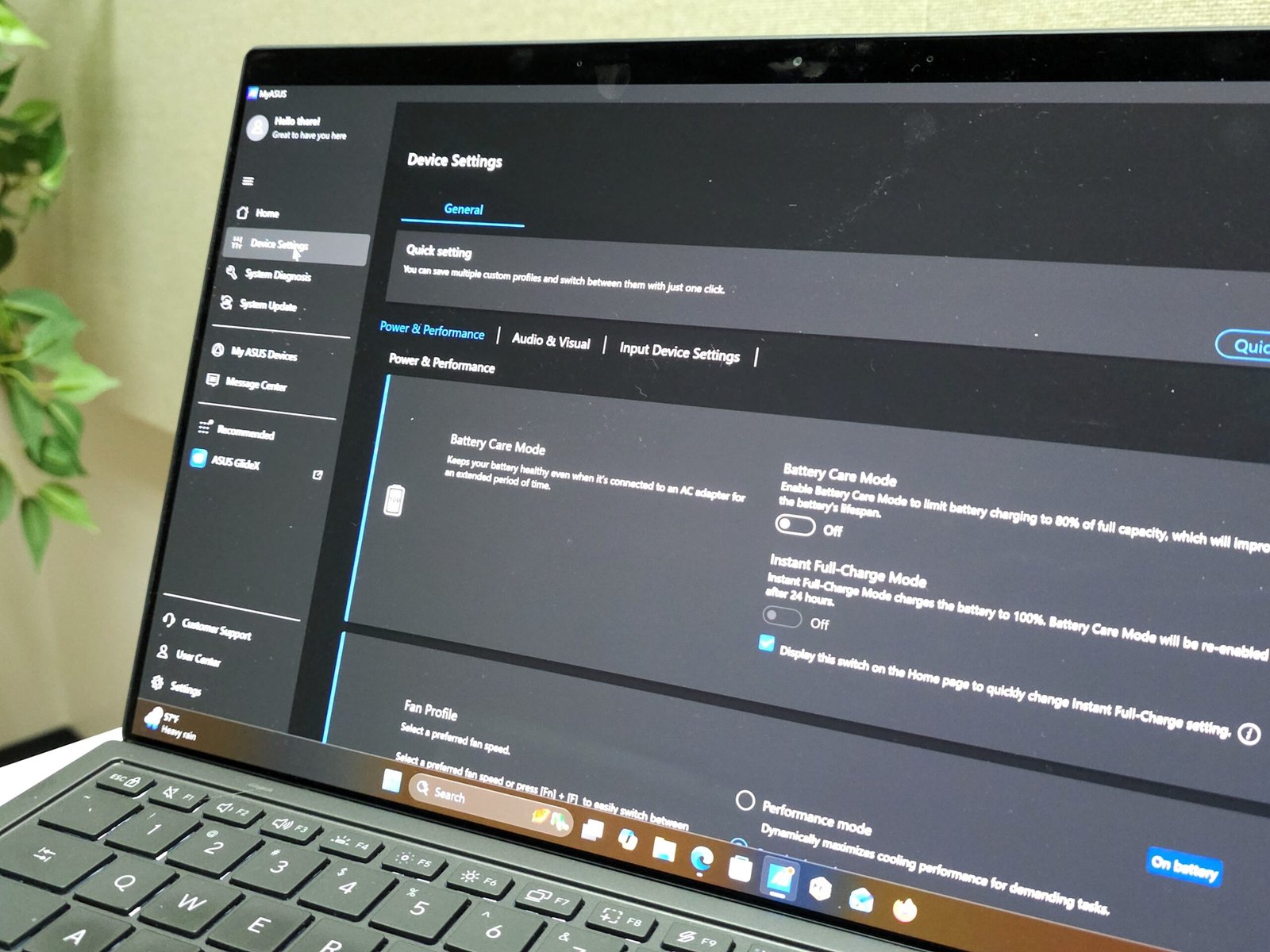
You probably know how to tweak your mouse, control your background, and adjust your laptop’s sleep times, all from the Windows Settings pages. But there’s a whole host of new capabilities hidden away within your laptop’s utility application, and it may be the only place to find them.
What’s a utility application? It’s the piece of software that ships with your PC, provided by the desktop or laptop manufacturer, such as Microsoft’s Surface application or Lenovo Vantage. You know, the one you typically skip right over? Well, you shouldn’t. The ability to change your display’s color gamut, adjust your fan profile to silent mode, and access other key capabilities is all hidden inside.
Fortunately, your laptop maker makes them easy to find! After setting up your PC, you’ll usually find the utility application either on your desktop, in the taskbar, or both. Simply double-click it to open up the application.
Most laptops contain the same features–screen, keyboard, CPU, and so on. But there can be a fairly wide divergence among laptop utility apps across vendors. Asus and Lenovo, for example, have rich, sophisticated apps, with Samsung not far behind. Acer, Dell, Microsoft, MSI and others have traditionally shipped a more bare-bones utility-app experience. Still, many vendors share some common features, and that’s what I’m highlighting here. (I’m going to focus on Lenovo’s Vantage and the MyAsus app, as they’re the most well-organized.)
PC dashboard, warranty, and service options
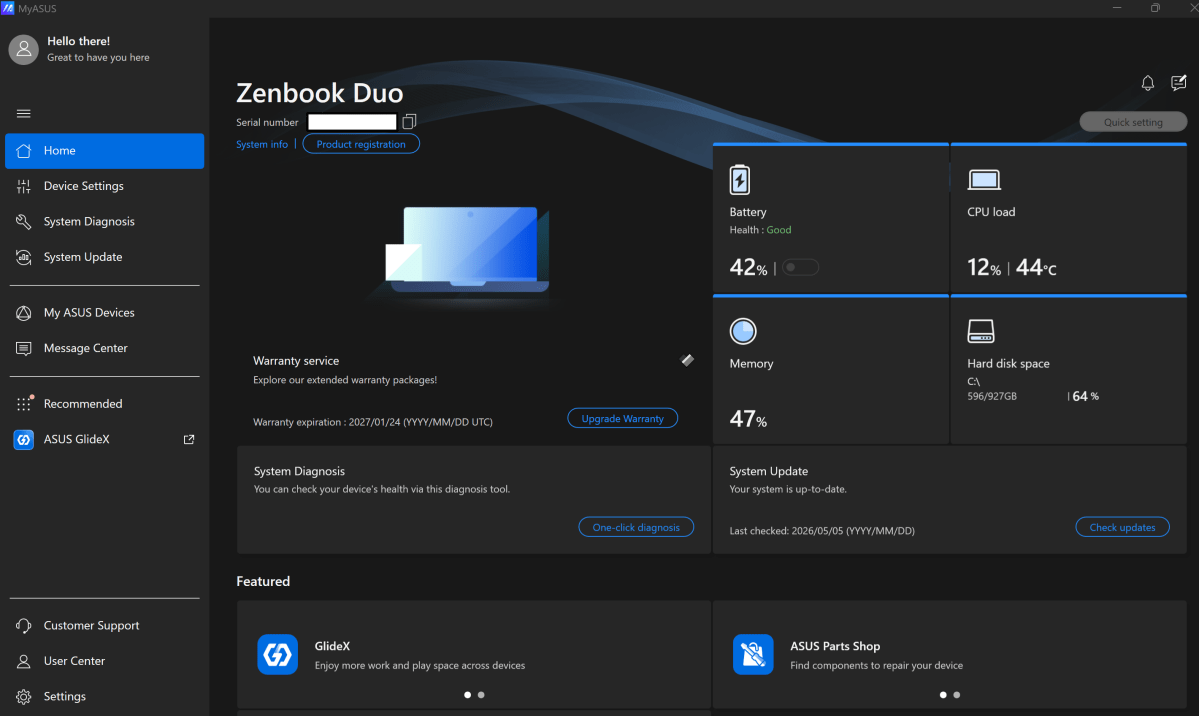
Many of the “home screens” of utility apps contain a summary of your PC’s attributes, including the state of your battery (charge level and health), available memory and storage, and possibly the CPU load and temperature. This is also where you’ll typically find your PC’s serial number and warranty status, along with contact information for technical questions and service requests. Some utility apps will include tests or diagnostics to identify any problems or potential sources of trouble. If there’s a problem with your PC, this is the best place to start.
Mark Hachman / Foundry
This can also be a good place to start looking for updates for your PC. Whenever I set up a new productivity PC, I always look for updates in three places: the Windows Update page within the Windows 11 Settings menu, the Microsoft Store, and the utility application. Sometimes the laptop manufacturer publishes firmware updates via the Windows Store itself, but not always. If you’re concerned about keeping your laptop’s firmware up to date (especially after a CPU bug is discovered), this is the place to look.
Change your laptop’s fan profile / performance
You can control your laptop’s performance using Windows 11 power controls, which can put your PC into a high-performance mode or dial it down to a lower performance tier to prolong your laptop’s battery life.
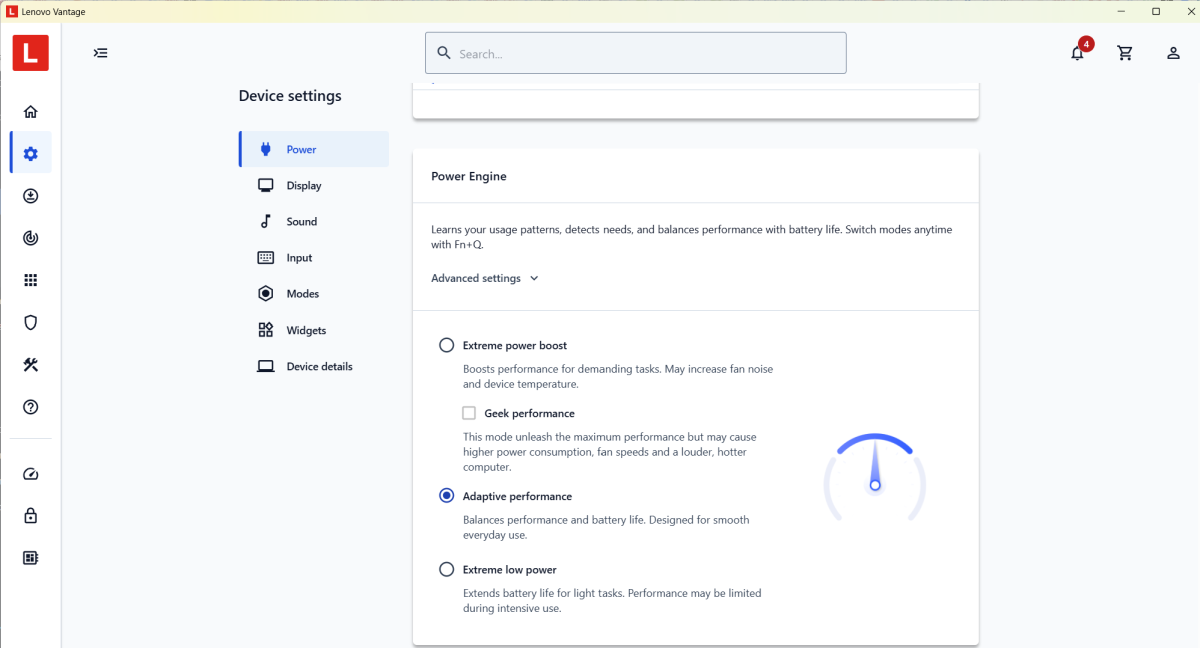
Your laptop’s utility software typically offers an alternative option: adjusting fan speed. Why? A higher fan speed means a higher degree of cooling, which can allow your laptop to run at faster speeds. (Usually there’s an option to tie fan speed to the performance slider, so that increasing fan speed also boosts the PC’s performance–but not always.)
Mark Hachman / Foundry
At the high end, you can get “extreme” settings or even “geek performance” on some Lenovo laptops, where everything is pushed to maximum settings. Alternatively, some laptops can be tuned for “whisper” or quiet mode, which limits performance but greatly reduces fan noise. These settings don’t typically require a reboot, so you can make adjustments as you will– silent mode for a workday, and an extreme setting for a little after-hours gameplay.
Adjust the color gamut
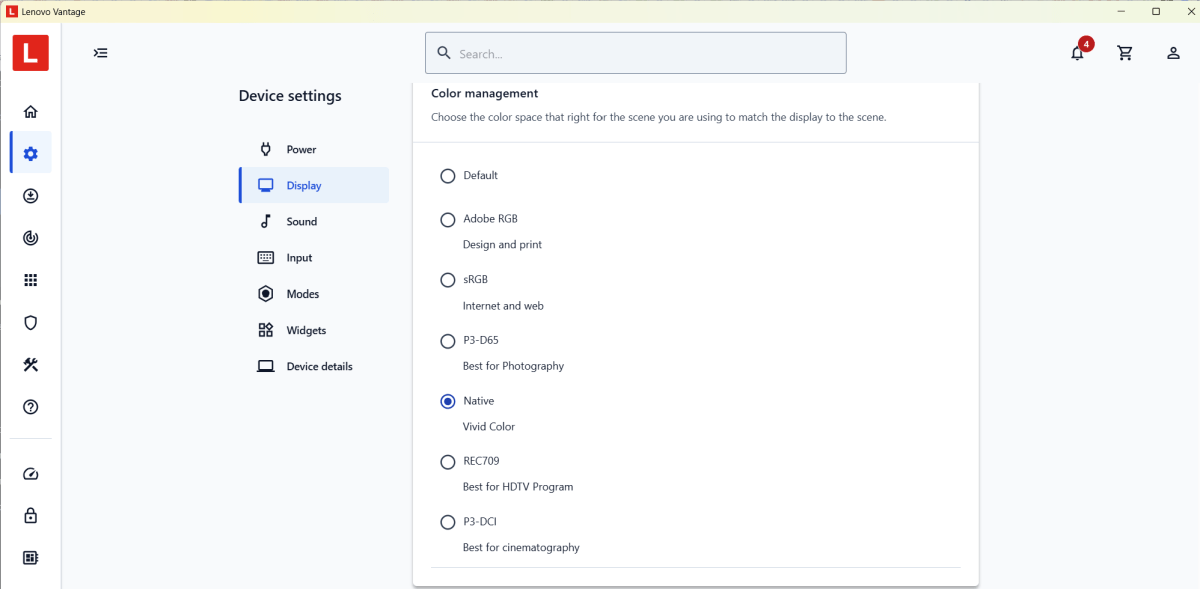
Most day-to-day users never need to adjust the color gamut, or how colors are represented on a laptop’s display. If you use a professional or premium laptop, however, these options may be built in, such as the P3 color gamut for photography and video work, Adobe RGB for design and print, and so on. In some cases, your laptop’s utility software allows you to switch your display’s settings at the click of a button.
Mark Hachman / Foundry
For professionals, this is a necessity. But even the average consumer can see some benefit. Just switching my laptop’s screen to “Vivid” makes streamed video look significantly better!
Adjusting your laptop’s charging mode
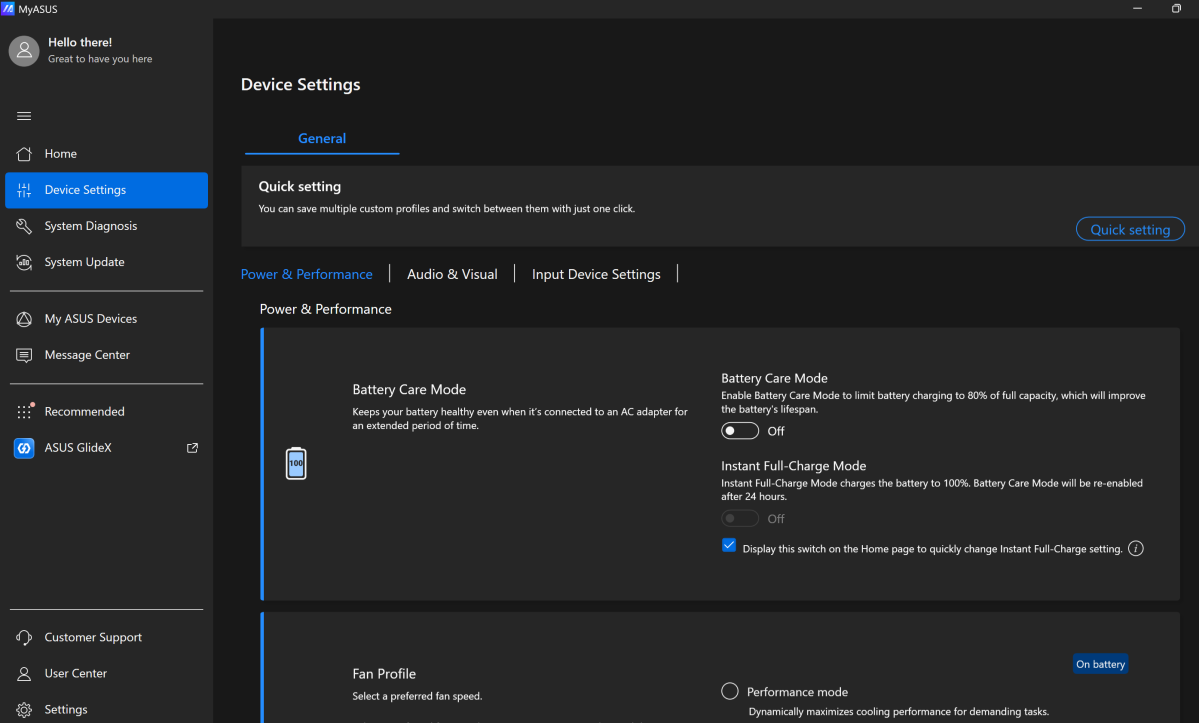
Charging phones or laptops have become increasingly sophisticated, with wireless charging, quick charging, smart charging, and so on. In my experience, the state of laptop charging hasn’t caught up to the sophisticated charging methods of smartphones, where it can learn your sleep schedule and charge to 100 percent capacity before your alarm goes off. (Lenovo’s Vantage can, but this feels like an exception.)
Mark Hachman / Foundry
Most modern laptops can switch between “battery care” or “conservation” mode and “full charge” mode in the utility app. You’re probably aware that you can extend your phone, laptop, or EV battery by charging to about 80 percent. That’s fine for normal use, but in certain situations you want as much battery life as possible. Your laptop’s utility app can give you that extra hour or two your workday needs.
Sound modes
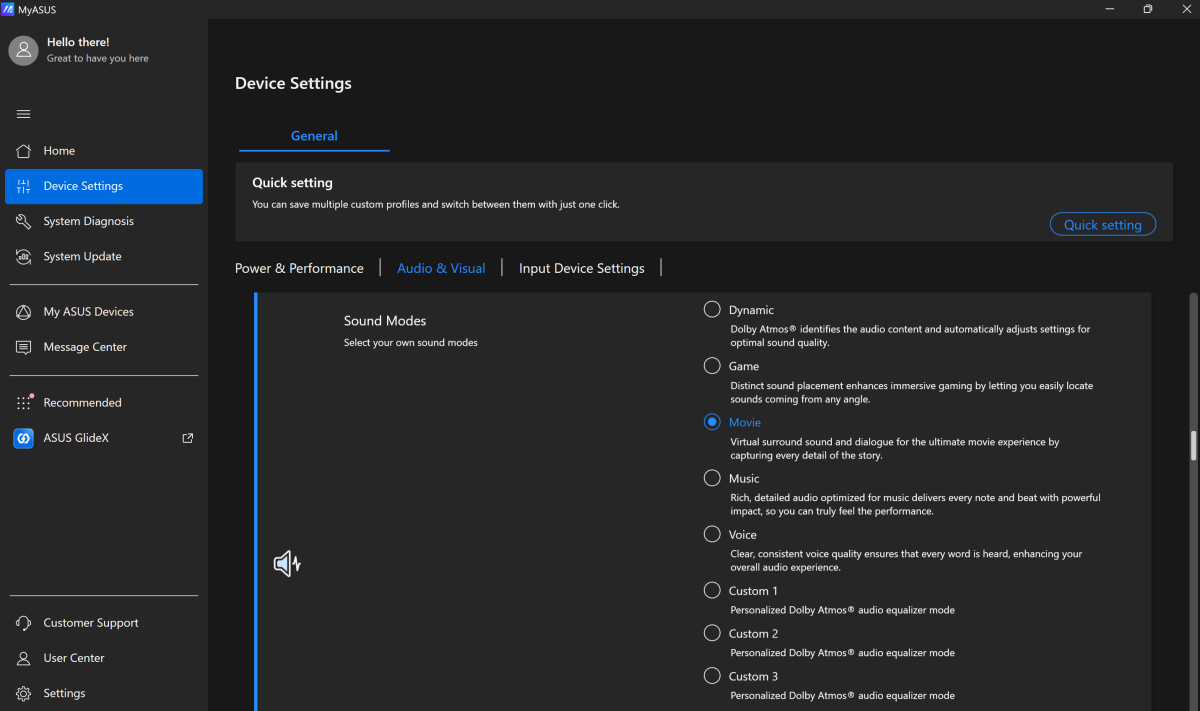
Gone, sadly, are the days in which you could depend on a graphic equalizer to adjust your laptop’s sound settings. Now those adjustments, in the form of presets, can be found in either your laptop’s utility app or in the audio algorithm itself (or both!).
Mark Hachman / Foundry
The point isn’t that there’s some magical audio algorithm hidden deep inside the bowels of your laptop’s utility application. Instead, it’s that if you try hunting it down via the Windows Settings application or the Control Panel, chances are you’ll come up short. Your computer’s utility application should be one of the first places you look to see what options you have to tune the sound that your laptop delivers.
OLED protection
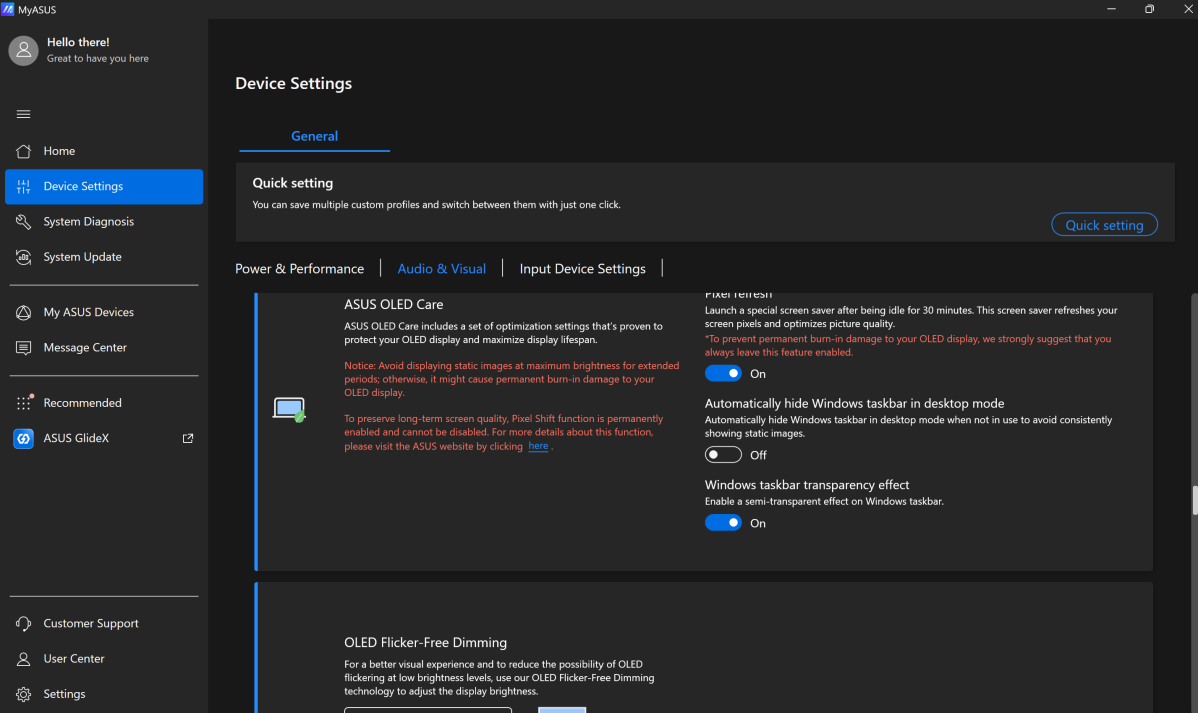
More laptops are shipping with OLED displays or OLED display options, which raises the question: Is OLED burn-in a risk? Most display manufacturers don’t think so, and independent studies have largely borne that out. Still, OLED burn-in degradation can occur slightly with prolonged use.
Mark Hachman / Foundry
If your laptop includes an OLED display, look for some form of OLED management control inside the utility app. It might include options to dim or turn off your screen. Either way, check whether your utility app has a”display” tab and see what options are available there.
Presence detection
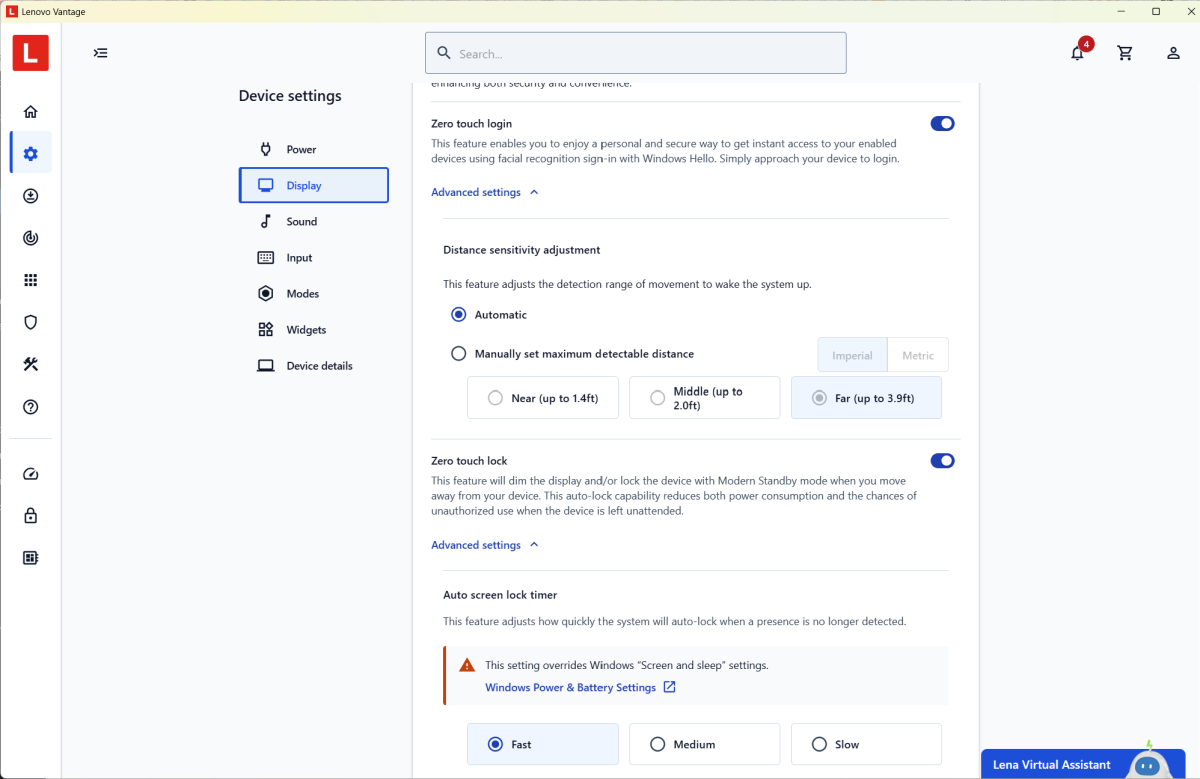
“Presence detection” is a catch-all term that determines whether you are still in front of the PC. In most cases, if the PC can’t determine you’re in the vicinity, it will lock the PC to prevent others from stealing its data. When you return, your laptop might use the webcam camera first to detect if someone is near, and then actively turn it on to recognize your face. Older implementations might use the proximity of a smartphone (connected via Bluetooth) as a presence detector.
Mark Hachman / Foundry
Some implementations combine presence detection with other functions, such as Lenovo’s Vantage software, which can pause video playback.
These are some of the common capabilities found in most (good) PC utility apps. And there’s more! Gaming PCs often include their own app or suite of apps for hardcore tweaking, such as Acer’s PredatorSense. But if you own a mainstream laptop, it’s worth discovering what your utility app can do for you… then take advantage of it.
This articles is written by : Fady Askharoun Samy Askharoun
All Rights Reserved to Amznusa www.amznusa.com
Why Amznusa?
AMZNUSA is a dynamic website that focuses on three primary categories: Technology, e-commerce and cryptocurrency news. It provides users with the latest updates and insights into online retail trends and the rapidly evolving world of digital currencies, helping visitors stay informed about both markets.
