You’ve probably seen countless warnings lately about Windows and expiring Secure Boot certificates. Why? Some PCs haven’t gotten the updates yet—and won’t unless you take action.
That’s the first problem. The second? Even if you do prep your machine appropriately, you may not get the new certificates immediately.
Here’s what you should know, how to stay safe online until your PC gets the necessary updates… and how to tell if your PC will even get this upgrade.
What is Secure Boot?
At startup, your PC loads the necessary code to start Windows. In the old days, this boot sequence was not protected, and hackers used that freedom to create sneaky malware that could modify Windows and also evade antivirus software detection.
Microsoft implemented Secure Boot to block such attacks. Think of it as similar to being at a checkpoint where an agent looks at your ID, sees if it matches the information in their database, and only lets you through if you’re a match on that approval list. On your PC, Secure Boot’s security certificates are that “database.” To run at boot, the “ID” (digital signature) of drivers, software, etc. must have a match within the certificate’s stored info.
Some PCs still use older Secure Boot certificates issued in 2011. Three of the four expired during the last full week of June 2026. The final one expires in October 2026. For full protection, your computer should be using newer Secure Boot certificates, issued in 2023.
How to tell if you have expired Secure Boot certificates
ASUS
You can still run a PC without up-to-date Secure Boot certificates, so don’t assume that if your PC still boots, it’s all set.
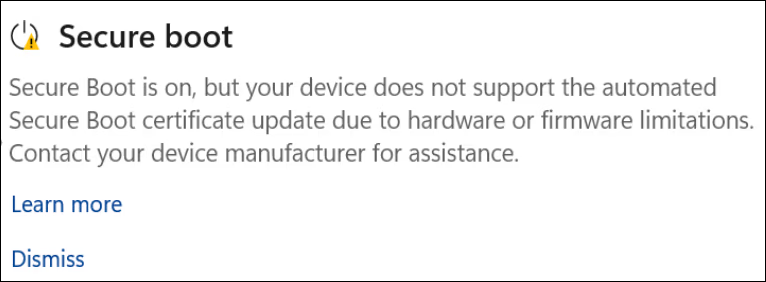
However, many PCs did automatic upgrades to the 2023 Secure Boot certificates. If yours hasn’t, Windows should notify you of the issue—check for a blue shield icon in your Taskbar’s system tray, with either a yellow or red mark on it.
Don’t see any such warning? Double-check by opening the Windows Security app, choose Device Security, and look at the icon next to the words Secure Boot. A green checkmark means you’re good to go. A yellow or red warning indicator means you must take action.
3 things to do if you have expired Secure Boot certificates
If you see a yellow or red warning about Secure Boot, you need to check your PC to see if it is able to receive those auto-updates. Microsoft is expanding its rollout of automatic certificate updates, but it can’t push those newer certs if your firmware is out of date.
Once you’ve settled that question, you also need to take a couple of precautions as you wait for the updated Secure Boot certifications.
1 – Update your PC’s UEFI/BIOS to the latest version
Ian Paul / Foundry
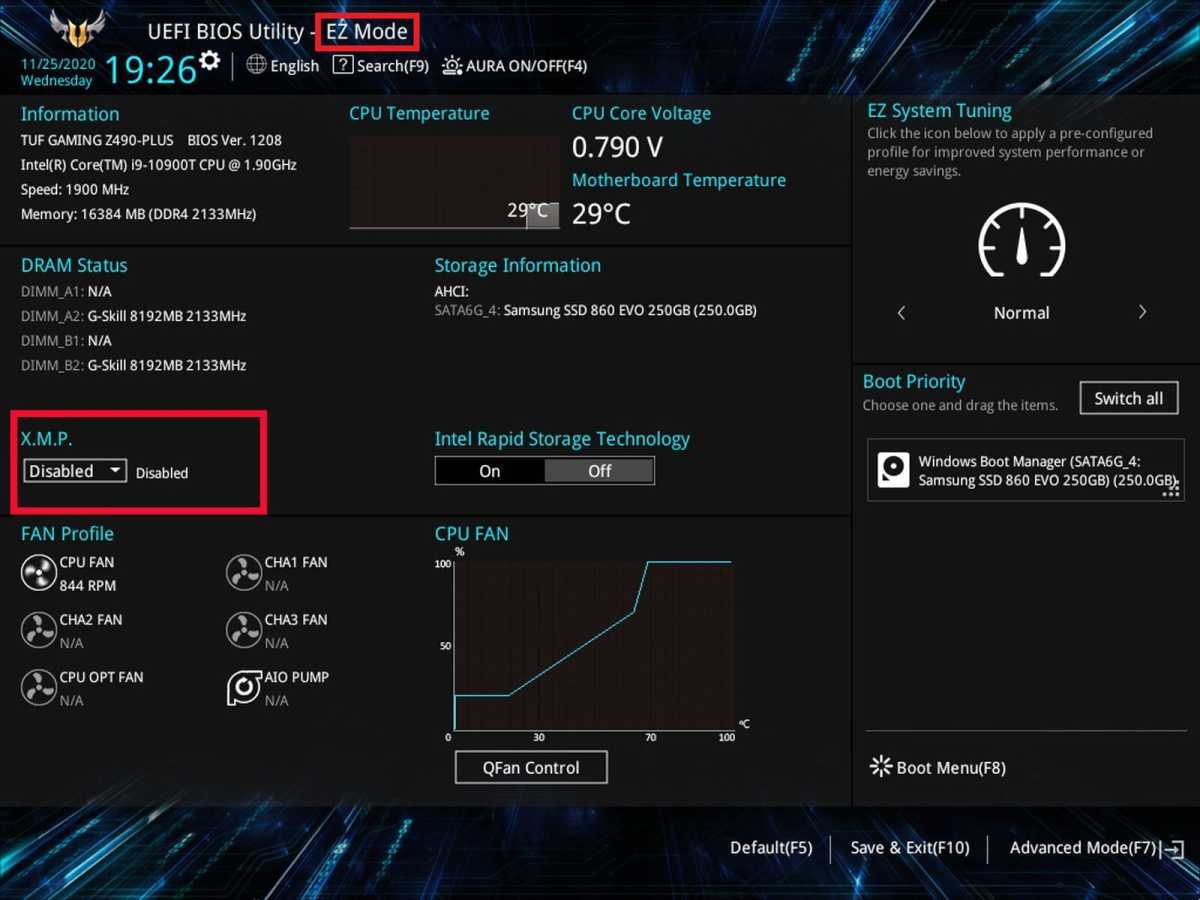
UEFI is software that handles a PC’s startup process. It’s the successor to BIOS, which was an older, simpler type of software that did the same job. (The term BIOS has been around long enough that people still use it, even when referring to UEFI.) If this firmware on your motherboard isn’t up-to-date enough, Microsoft can’t automatically update your Secure Boot certificates.
So if you’re seeing a yellow or red warning about Secure Boot, make sure your UEFI/BIOS version is as current as possible.
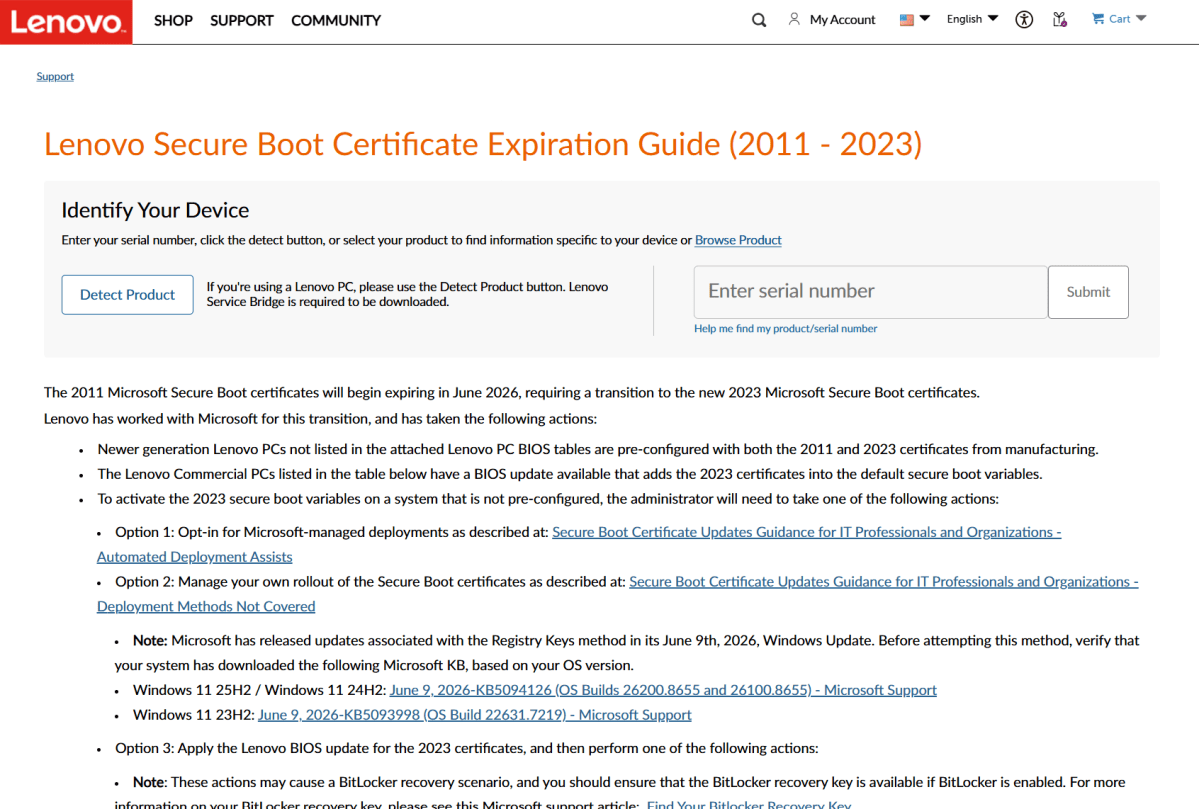
You bought a PC from Dell, Lenovo, HP, etc:
Find the support page for your PC model. You can often use automatic diagnostic tools that analyze your system and report back on what your PC’s UEFI/BIOS is, as well as help you update to the most recent version.
If you’re having problems understanding the support pages or finding the right info, you can instead use this guide from Windows Latest. It explains where to find Secure Boot update information for each major vendor.
Lenovo
Your PC is built from scratch (DIY)
This scenario applies to a computer you built—or someone built for you (including some boutique PC vendors).
- Determine your current UEFI/BIOS version. Within Windows, you can install an app called HWiNFO that will reveal that detail. Otherwise, just restart your system and enter the UEFI/BIOS at boot. Usually the version info is at the top or the side of the screen.
- Next—head to your motherboard manufacturer’s support page. Ensure you have the page that matches your specific mobo version (e.g., REV 1.0 vs REV 2.0), not just model number.
- Compare your UEFI/BIOS version against the list of UEFI/BIOS revisions. Check the release notes for any that mention Secure Boot certificate updates. Don’t see any mentions? Just update to the latest version.
- Update your BIOS. For these manual DIY UEFI/BIOS updates, you usually have to do these the old-school way: Download the update files, put them on a flash drive, then boot into your UEFI/BIOS to install the updates.
Note: If your UEFI/BIOS version is pretty old, I recommend updating your UEFI/BIOS in several jumps. Going in one shot—applying the latest update to a very old version—can sometimes cause issues. Update more gradually by identifying major UEFI/BIOS releases (as marked in the release notes), then working your way through those to the most recent version.
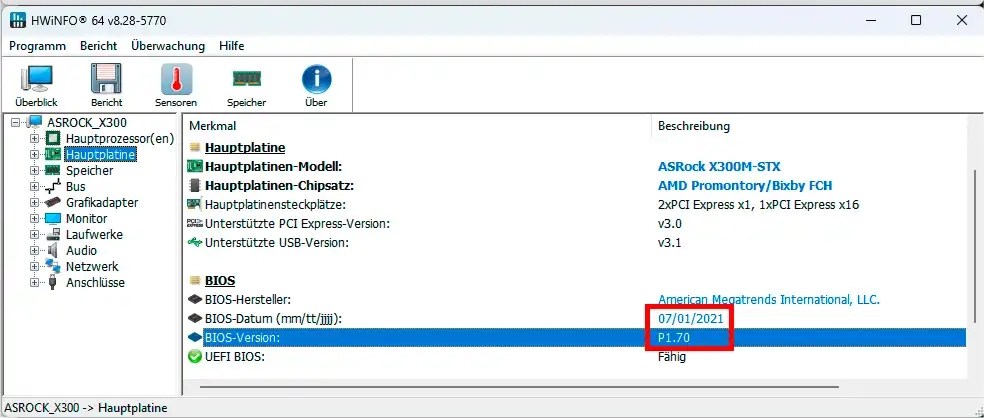
PC-Welt
Your PC is semi-DIY
Some PCs live somewhere between prebuilt and DIY. One example—Intel NUC PCs, which were designed more for business customers and weirdo enthusiasts (hello).
For these kinds of systems, you may be able to download a vendor-provided tool that reports on the PC’s status, including the exact model number and the UEFI/BIOS version. (Such a tool does exist for Intel NUCs.) Looking up the support page and any relevant UEFI/BIOS updates is much easier as a result.
The UEFI/BIOS update may also have self-executing versions you can run from within Windows. It reduces the amount of time needed to perform the UEFI/BIOS update—no need to load up a flash drive, reboot into the UEFI/BIOS, and manually upgrade. This is not a guarantee your PC will also have such an option, but it’s more likely.
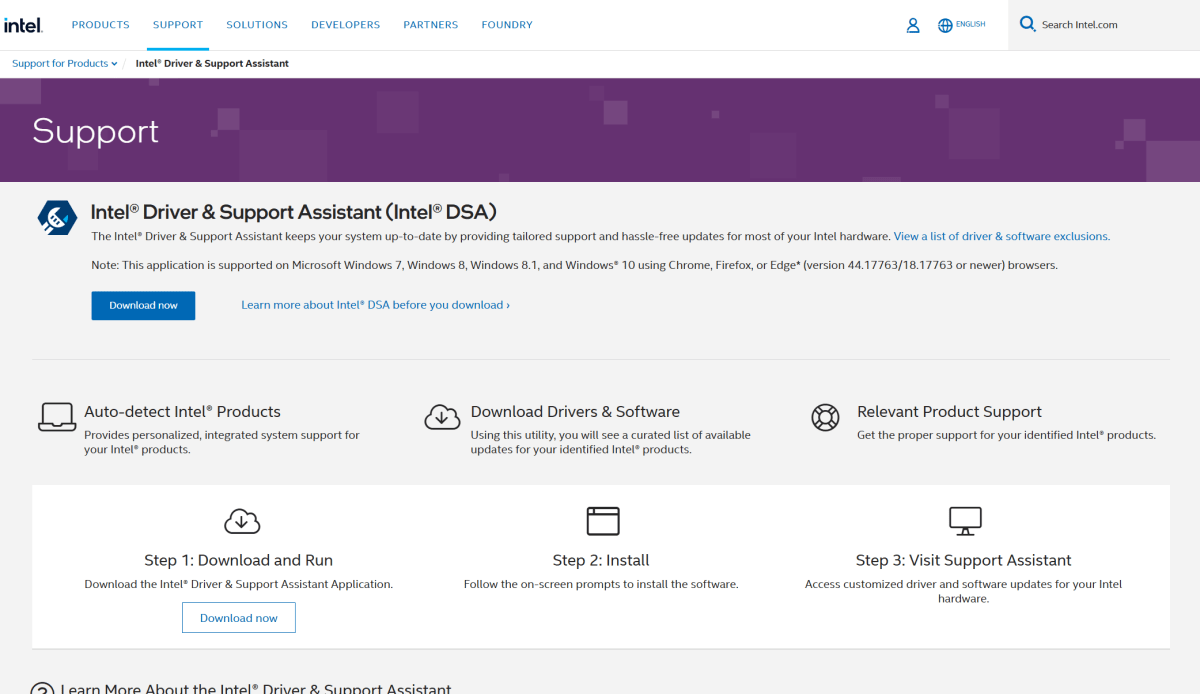
Intel
2 – Exercise more caution when online
Having out-of-date Secure Boot certificates isn’t an immediate, red-alert danger for your PC. But over time (and possibly not much time, given how fast AI enables vulnerability discoveries and malware development), your PC will become more vulnerable to attack.
So while you’re in limbo, watch sites you visit, what browser extensions you install, and what software you download. Malicious sites can deposit malware on your system without you knowing. Compromised browser extensions can also end up putting malware on your PC. And downloading pirated apps can again have malware embedded in them.
3 – Keep your antivirus software updated
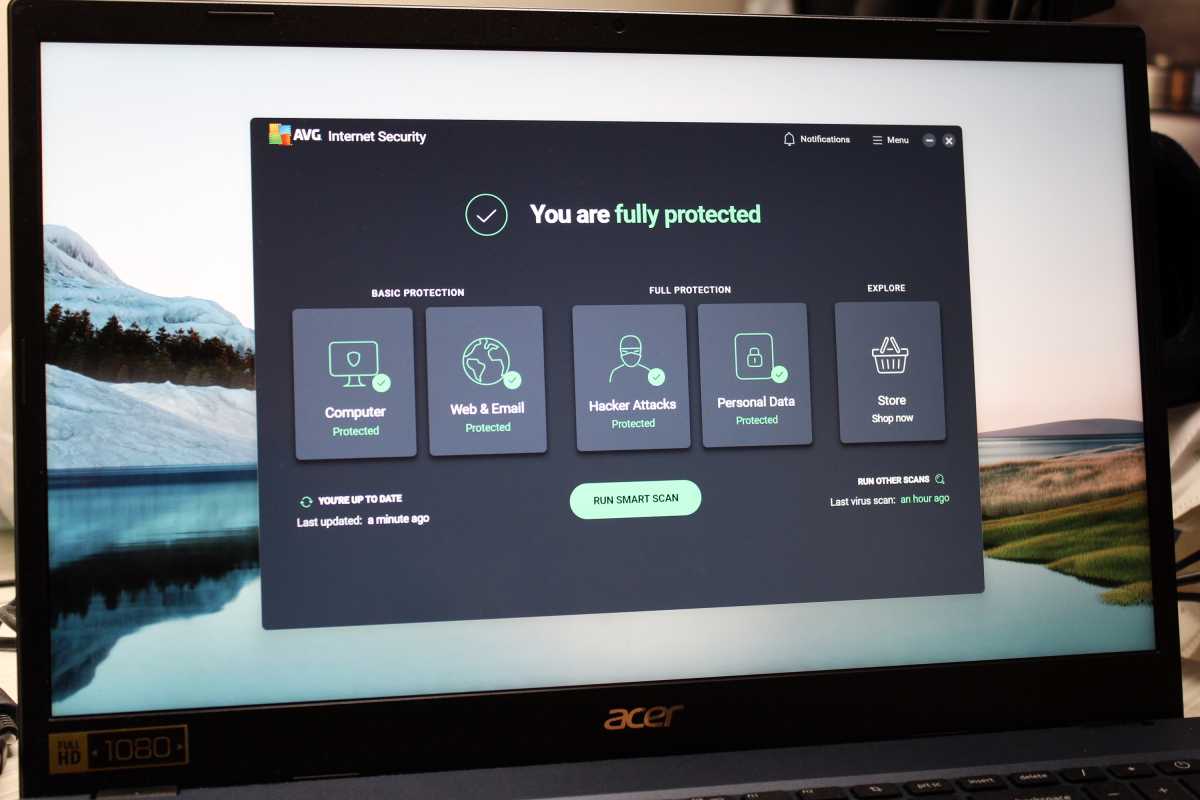
Alaina Yee / Foundry
Generally, antivirus software run within Windows has a harder time spotting bootkits and other malware lurking within your startup process. So you can’t rely on security software to remove an existing infection.
But staying on top of antivirus software updates can still be helpful for avoiding bootkits before they get installed. If your app knows what to look for, it can block you from accidentally installing such nasty code on your PC.
So give yourself better odds with up-to-date virus definitions.
What if my PC can’t get Secure Boot certificate updates?
Unfortunately, Microsoft doesn’t decide if your PC will get updated Secure Boot certificates. The vendors who manufactured your hardware do. They must issue firmware that will support the new certs. If they don’t, you’re out of luck.
How will you know? For prebuilt PCs and laptops from makers like Dell, Lenovo, HP, etc, their Secure Boot update guides may outline the policy. For computer components, their support pages may outline that info. If you can’t find this information, try support forums for further info.
Pragmatically speaking, if your PC’s manufacturer no longer supports your computer, you’re likely facing a forced hardware upgrade. You could look at switching to Linux, but many distros rely on the same certificates as Windows.
What about continuing to use your PC without updated Secure Boot certificates? I don’t recommend doing it for too long. Online threats continue to increase, and at faster and faster speed. Don’t save some cash to ultimately pay with your time, should someone compromise your PC.
This articles is written by : Fady Askharoun Samy Askharoun
All Rights Reserved to Amznusa www.amznusa.com
Why Amznusa?
AMZNUSA is a dynamic website that focuses on three primary categories: Technology, e-commerce and cryptocurrency news. It provides users with the latest updates and insights into online retail trends and the rapidly evolving world of digital currencies, helping visitors stay informed about both markets.
